
Overview
Integration Setup Overview
This guide explains how to configure a third-party platform integration in Item DI. The Integrations module provides a backend configuration interface that allows developers to configure the integration with external platform APIs via four main steps.
Prerequisites
Before configuring a new integration, you must collect all required information from the target platform. This includes credentials, environment details, and authentication parameters.
Field | Description | Example |
|---|---|---|
API Documentation | Link to the platform’s public API reference | https://shopify.dev/docs/api |
Auth Method | The authentication type required by the platform | OAuth 2.0 Code |
Client Credentials | Client ID and Client Secret issued by the platform | From the developer portal |
Redirect URI | OAuth callback URI registered with the platform | https://di-v2.item.com/api/linker-di/open-api/connectors/http/oauth/v2/auth-code |
Developer App | App registered on the third-party platform | Shopify App, Amazon Developer Account |
Token URL | Endpoint for exchanging code for access tokens | https://example.com/oauth/token |
Scope | Access scopes required for API calls | readorders, writeinventory |
Region | Platform region or environment zone | US, EU |
Shop Domain / Account ID | Identifier for the specific merchant instance | myshop.myshopify.com |
Common Parameters | Parameters reused in multiple calls or flows | shopdomain, customerid |
These values are used during Steps 1 and 2, especially in Common Parameters Schema, token handling, and URL generation.
Add a New Integration
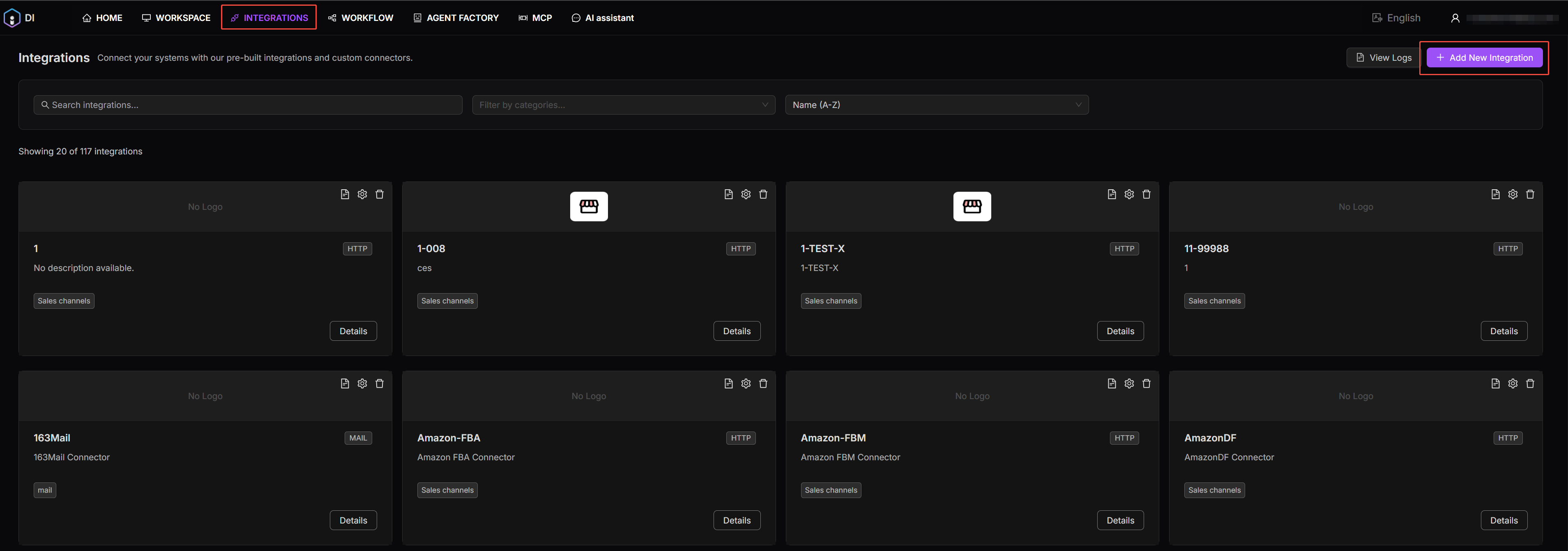
To add a custom integration:
1. Log into Item DI. 2. Navigate to INTEGRATIONS > + Add New Integration. 3. This will launch a guided configuration that includes the following steps:
Step 1: Define Integration Metadata – Fill in basic information to register the integration.
Step 2: Configure Authentication Method – Configure the required authentication method based on the integrated platform.
Step 3: Set Up a Test API Call – Set up a test API call and validate it by creating a connector and reviewing the logs.
Step 4: Register API Features – Import available features from the platform’s API and preview or test the imported endpoints.
Each step builds on the last, ensuring the integration is fully connected and usable across workflows, connectors, and MCP clients.
Related Guides
After completing setup, see:
Integration Use Cases – How integrations are used across DI
View HTTP Logs – Debugging and validation after setup
For a complete use case, see Shopify Integration – Full Setup