
Set Up a Test API Call
Set Up a Test API Call
In Step 3, you define a test API operation to validate that the authentication and request logic is working correctly. The test is triggered when a connector is created using this integration.
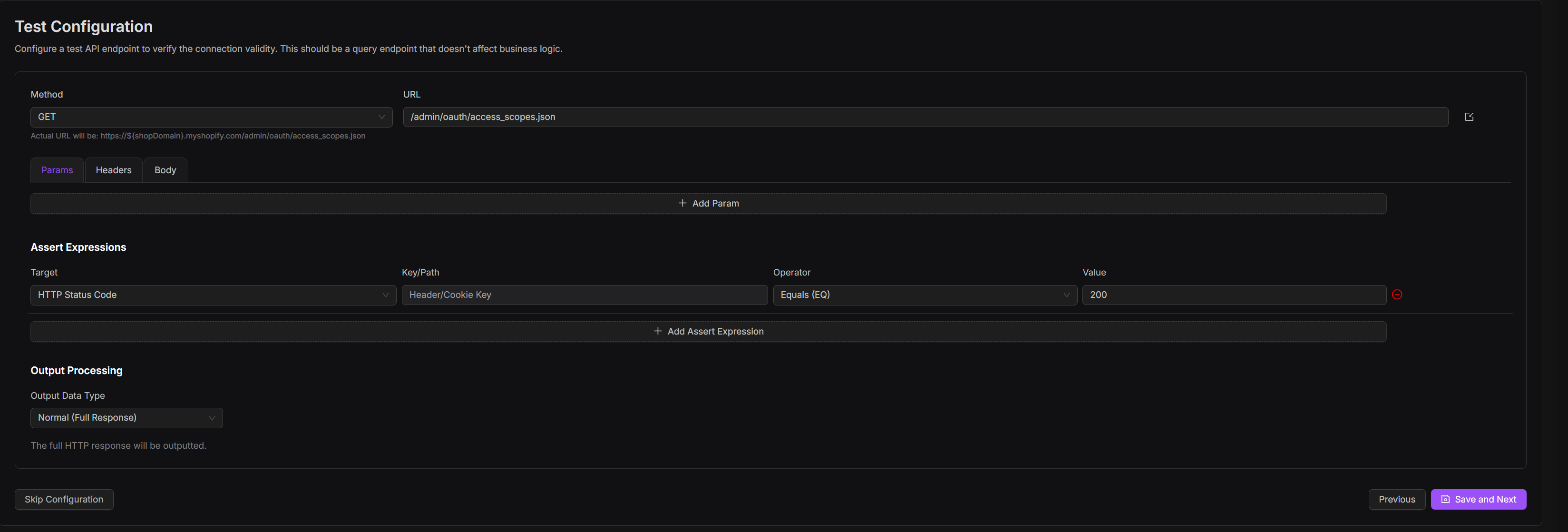
To configure a test API call:
1. Choose a lightweight, non-destructive API endpoint from the third-party platform that can confirm successful connectivity.
Config Section | Developer Action | Example |
|---|---|---|
HTTP Method | Select the request method to test connectivity. | GET |
Test URL | Provide the full API endpoint. Use one that verifies credentials without modifying data. | https://sellingpartnerapi-na.amazon.com/orders/v0/orders |
Headers / Auth | Add required headers (e.g., token, API key) as expected by the platform. | Authorization: Bearer ${accesstoken}` |
Params / Body | Add optional query parameters or body values. | Filter fields, date ranges, etc. |
Assert Expression | Define the expected success condition. | HTTP Status Code == 200 |
Output Processing | Select how the response will be handled or extracted. | - Path: $.orderid <br> - Fixed: tokentype: Bearer <br> - Full Response |
2. After completing the fields above, click Save and Next. 3. To execute the test API operation and validate the configuration:
Navigate to Workspace and select the target merchant.
Click + Add Connector.
From the connector list, choose the integration created in Step 1.
Input required authentication fields (e.g., API Key, OAuth login).
Complete the Auth flow and click Test Connection.
4. This triggers both:
Authentication check (token or credential validation)
Execution of the configured test API call
5. If the connection is successful, click Submit. The connector will now appear in the Connectors list. 6. If the test fails:
Review the Error Message in the connector setup window.
Navigate to Integrations, locate the one you created, and click View Logs for debugging.