
HTTP Connector Logs
HTTP Connector Logs
This guide explains how to view detailed logs for all HTTP-based API activity across connectors, flows, MCP servers, API and authentication flows. These logs allow you to inspect request/response content, validate variable injection, confirm request configuration, and debug integration issues.
View Logs
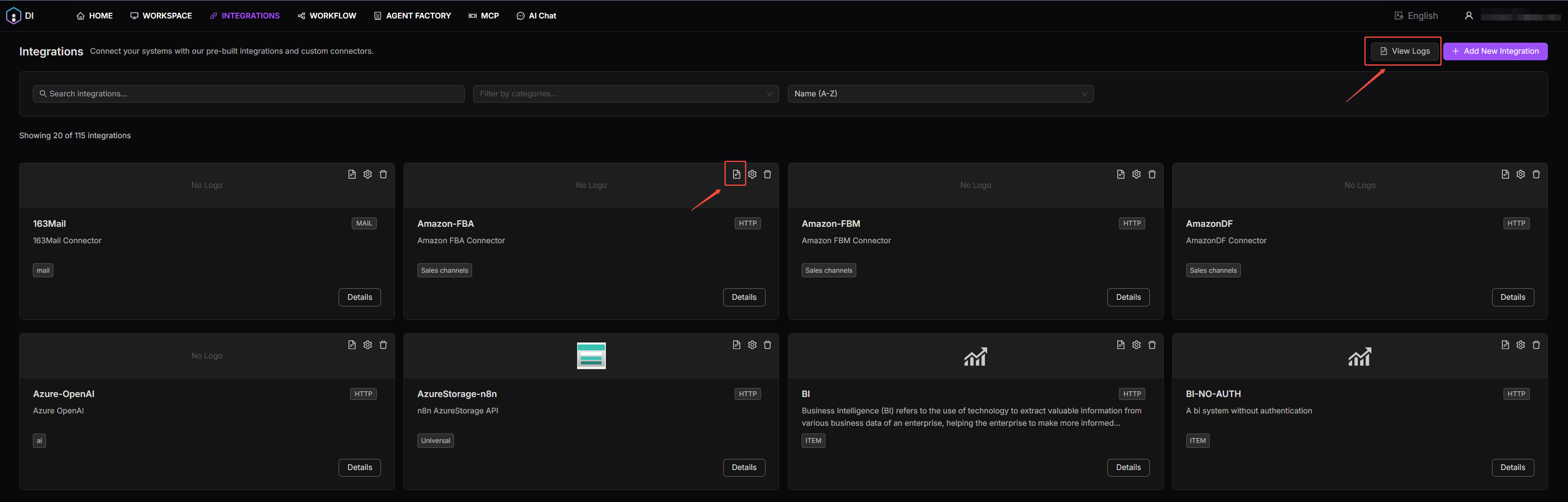
There are two ways to access the logs:
1. To view all logs, navigate to Integrations > View Logs. 2. To check logs for a specific integration, click View Logs from the integration list.
You can filter the logs using the options shown below:
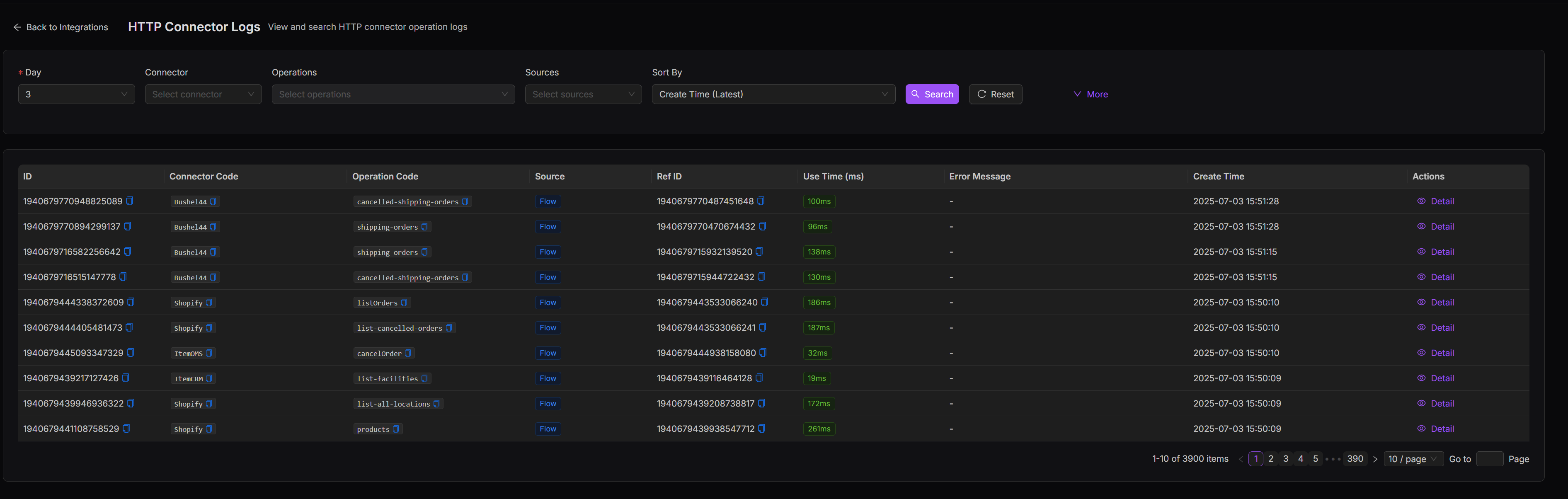
Day: Filter logs by a specific date
Connector: Select a specific connector
Operations: Filter by a specific operation or feature (currently not supported)
Sources: Filter by request source (Flow, MCP, Auth, API)
Sort By: Sort logs by creation time or usage time
Reset: Clear all applied filters
View Log Details
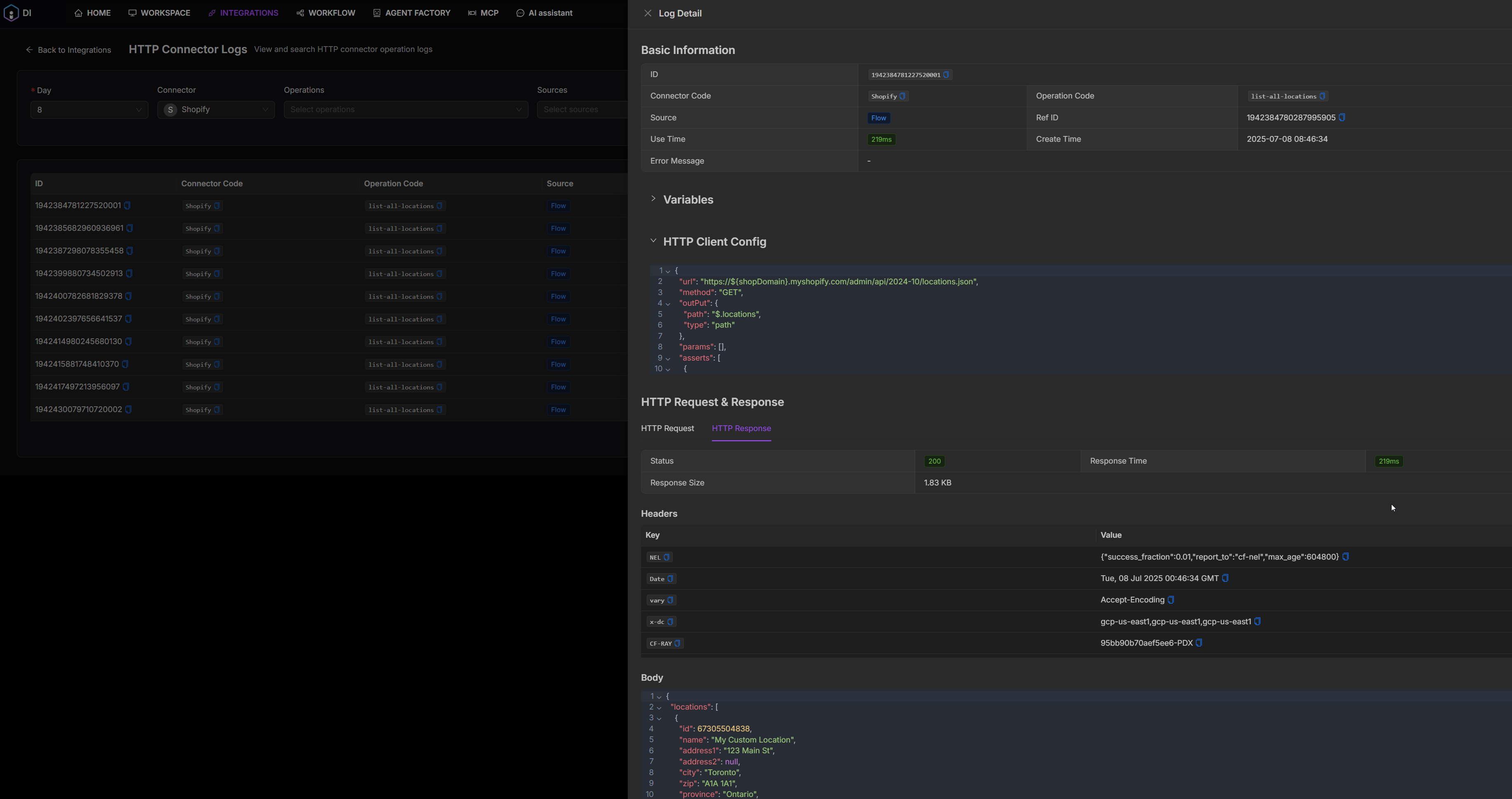
To view full request context, click Details on any log entry. Each log contains the following sections:
Section | Description |
|---|---|
Basic Information | Metadata about the request (source, connector, execution time, etc.) |
Variables | Runtime parameters injected into the request (e.g., query strings, headers, or body values) |
HTTP Client Config | Request structure defined in DI (method, body, output handling, etc.) |
HTTP Request & Response | Final request sent and raw response returned from the third-party API |
Basic Information
Field | Description |
|---|---|
ID | Unique identifier for the log entry |
Connector Code | Name of the connector (e.g., Shopify, ItemOMS) |
Operation Code | Operation or feature code (e.g., listOrders) |
Source | Request origin (Flow, Auth, API, MCP) |
Use Time | Duration of the request in milliseconds |
Error Message | Error detail if the request failed (e.g., assert failed, status != 200) |
Ref ID | Reference number (for tracing source logic) |
Create Time | Timestamp of request execution |
Source values:
- Flow: Triggered from a connector node in a workflow
- MCP: Triggered from an MCP-compatible server
- Auth: Triggered during an authentication flow (e.g., token exchange)
- API: Triggered via an API call to DI from an external system
Debugging
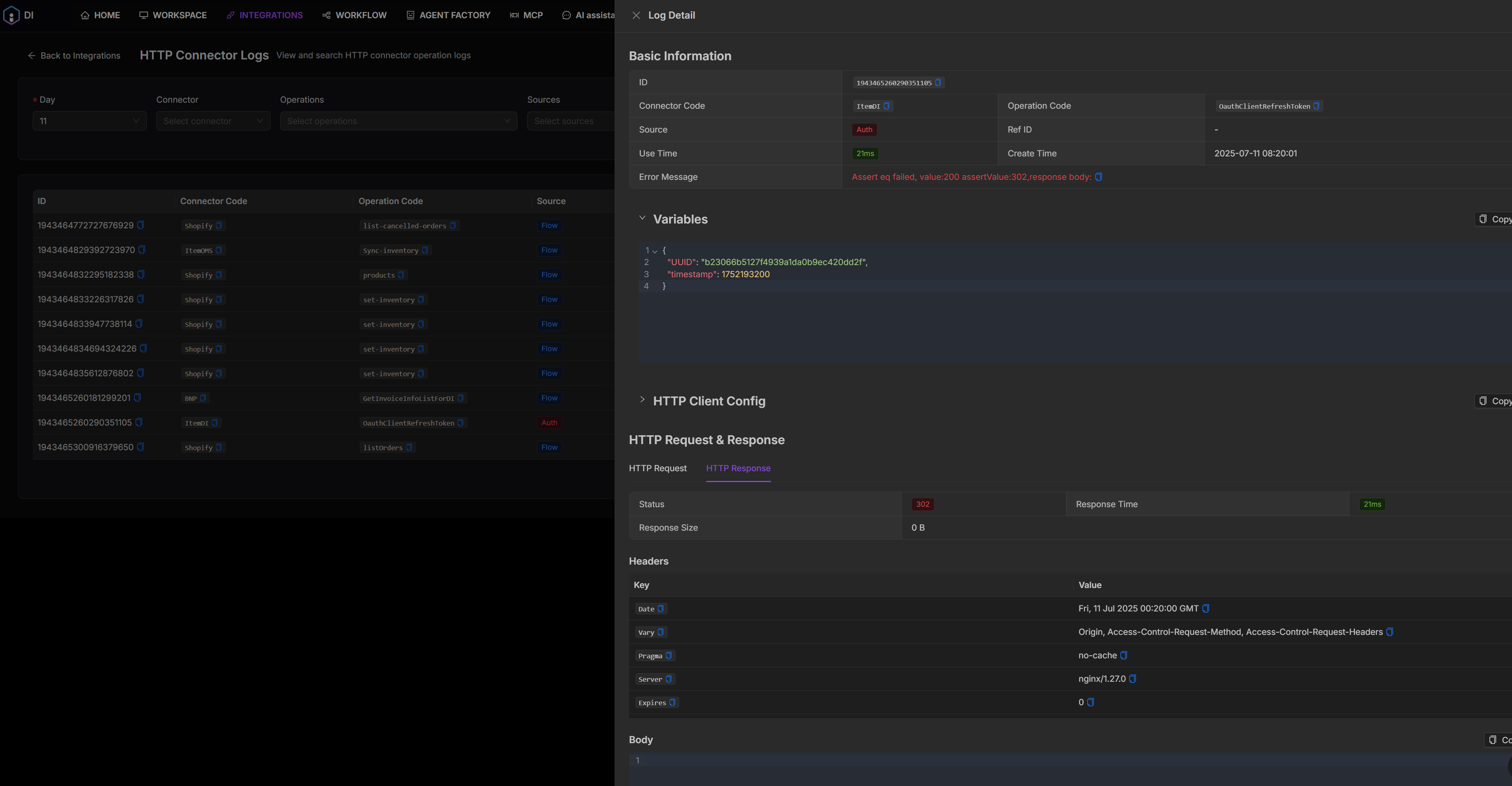
If a request fails or behaves unexpectedly, use the Error Message and the following sections to troubleshoot.
Section | Debugging |
|---|---|
Variables | Confirm that all required parameters were injected properly. |
HTTP Client Config | Check that the request was structured correctly in the connector or feature config. Compare with the third-party API spec to ensure your setup aligns. |
HTTP Request | Inspect the final request sent to the API. |
HTTP Response | Analyze the response to understand failure causes. |