
Foundation Data Configuration
Foundation Data Configuration
Introduction
The Foundation Data section enables management of essential data by the system operator, including merchants, suppliers, retailers, and manufacturers. It allows you to creating and managing items under specific merchants or suppliers, define relationships between merchants and these entities, and search ports. This serves as the groundwork for smooth downstream operations like project creation, purchasing, and PO issuance.
System Roles Management
The steps for adding suppliers, retailers, and manufacturers are the same. Here, take creating a supplier as an example.
Create a Supplier
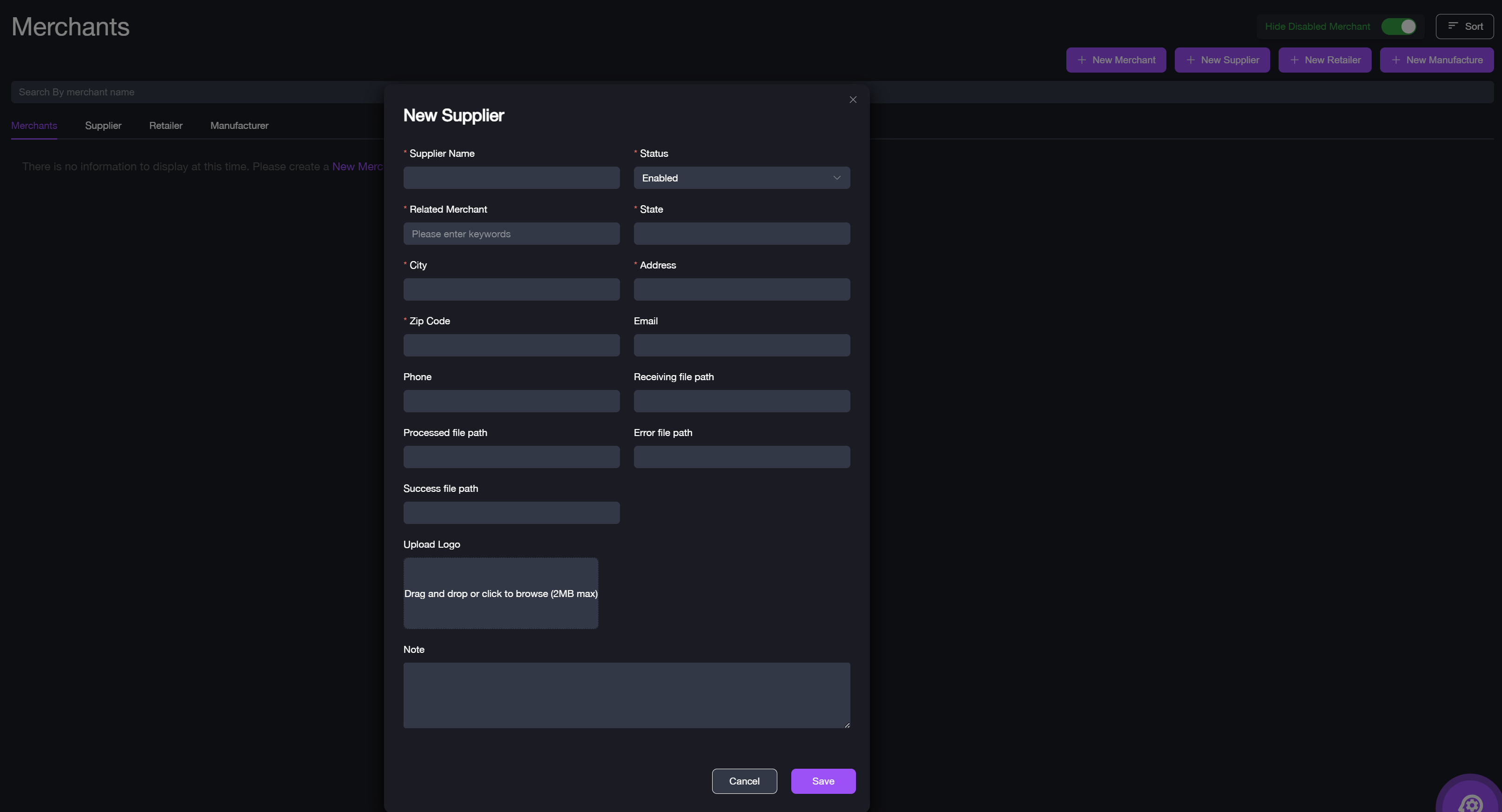
1. Sign in to item OMS with your account. 2. Navigate to Foundation Data > Merchant. 3. Click + New Supplier to open the creation form. 4. Enter the Supplier Name and set the Status (default is Enabled). 5. Select the Related Merchant from the dropdown. 6. Provide additional details, including:
State, City, Address, Zip code.
Email, Phone Number.
The receiving file path, Processed file path, Error file path, Success file path for EDI files transaction.
7. Upload the Logo if available. 8. Add any Notes for reference. 9. Click Save to complete the setup.
Add Items
Once the foundation data are added, the next step is to add items info. The system allows you to either import products in bulk or manually add individual items.
Import Items
1. Navigate to Foundation Data > Item. 2. From the item list page, click + Import Item. 3. Click Download Item Template and fill in the required fields in the template. 4. Upload the completed template to the system. 5. Click Submit to complete the import process.
Manually Add Items
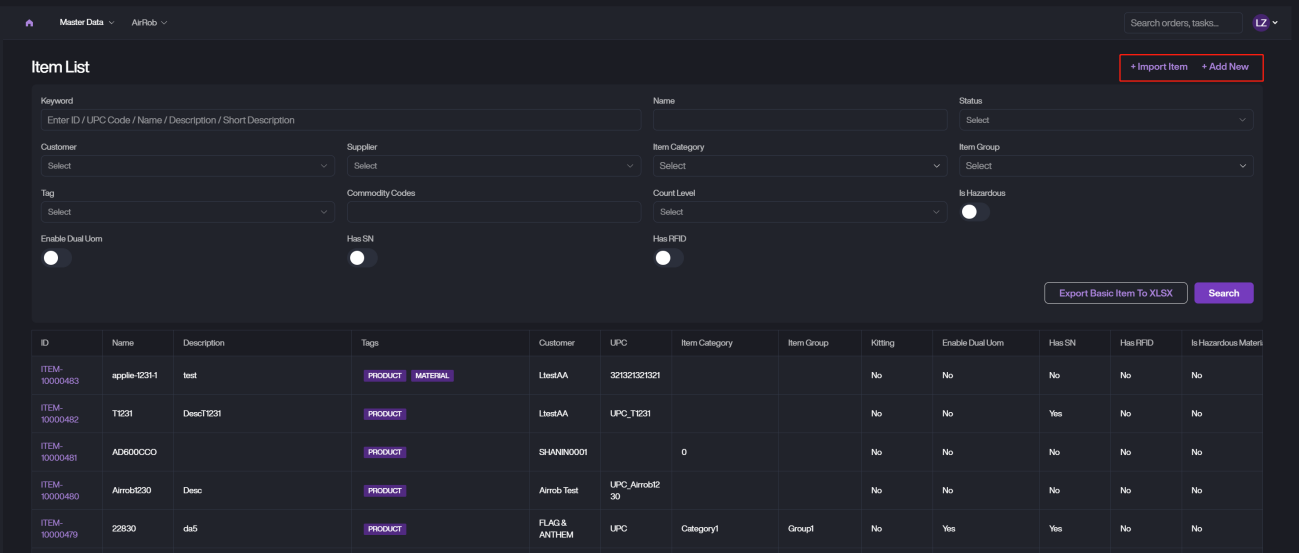
1. Navigate to Foundation Data > Item. 2. From the item list page, click + New Item. 3. Complete the basic info.
Basic Item Info
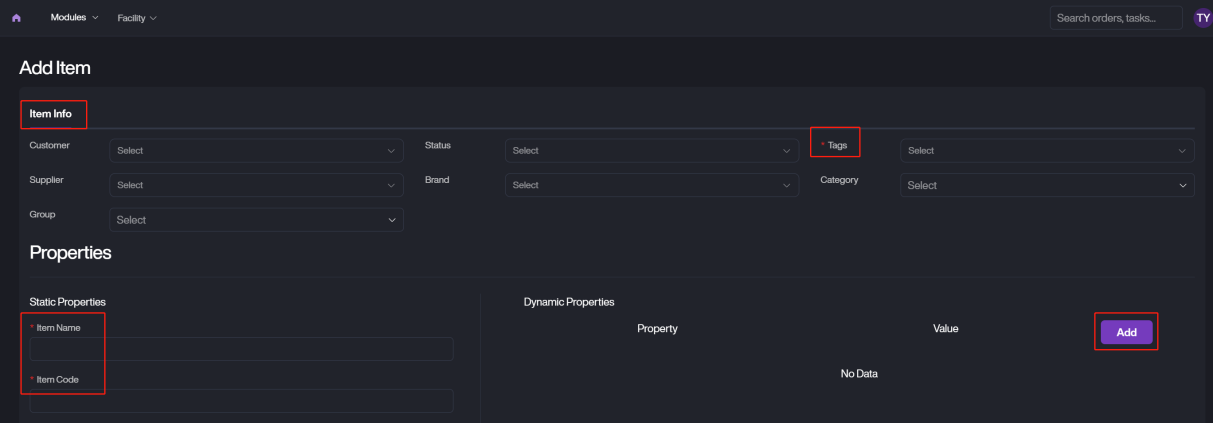
Field Name | Description |
|---|---|
Item Name | The name of the product to be added. |
Item Code | A unique identifier for the product. |
Merchant | Select the merchant associated with the product. |
Supplier | Choose the supplier providing the product. |
Item Status | Set the product's current status. Options: Active, Inactive, Discontinue, Pending, Order Only, Draft, Archived. |
Item Tag | Specify whether the product is categorized as Material or Product. |
Additional Info
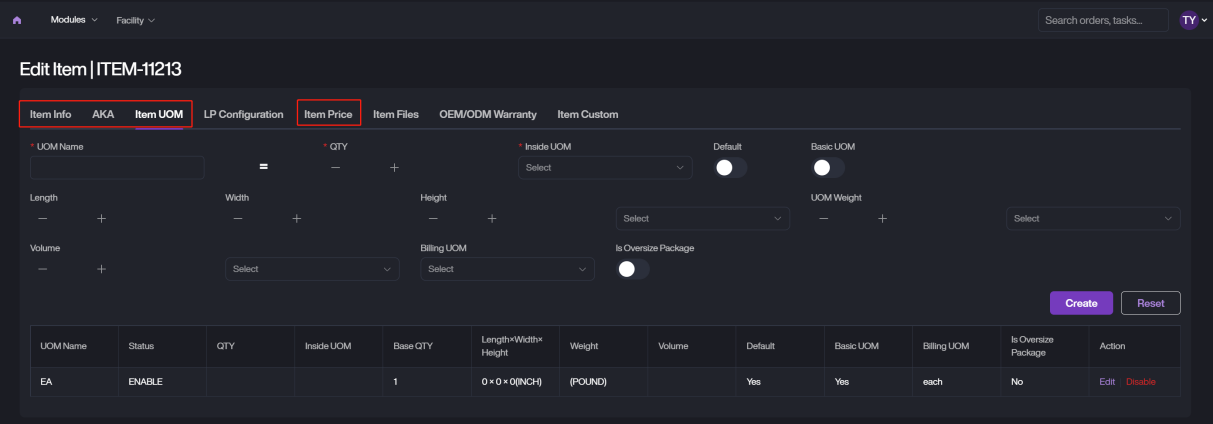
Section | Field Name | Description |
|---|---|---|
AKA | Tag | Select a tag (Merchant, Supplier, Retailer, Brand) for the product. |
Unique Value | Provide a unique value for the tag. | |
Item UOM | UOM Name | Specify the unit of measure. |
Conversion Quantity | Set the conversion quantity (e.g., Pallet = 10 Cases). | |
Package Dimensions | Enter length × width × height. | |
Weight | Enter the weight in kilograms or pounds. | |
Item Price | Price Type | Select the price type (Insurance Price, Sales Price, Purchase Price). |
Price Amount | Input the price amount for the selected UOM. | |
Currency | Choose the currency for the price. |