
Customer Management
Customer Management
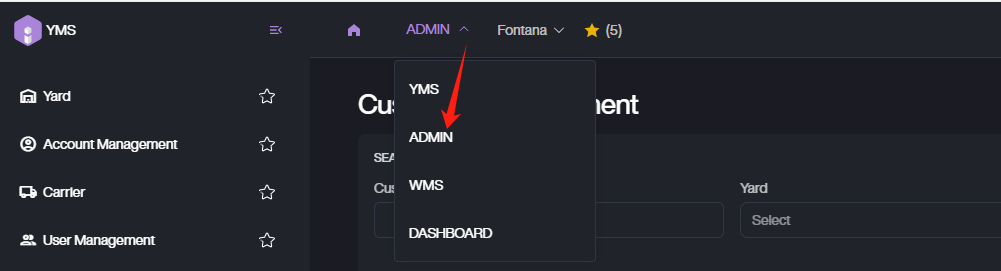
Click the top switch to select Admin. From the left menu, go to Customer to open the Customer Management page. Here you can view, create, and edit all customers in the system.
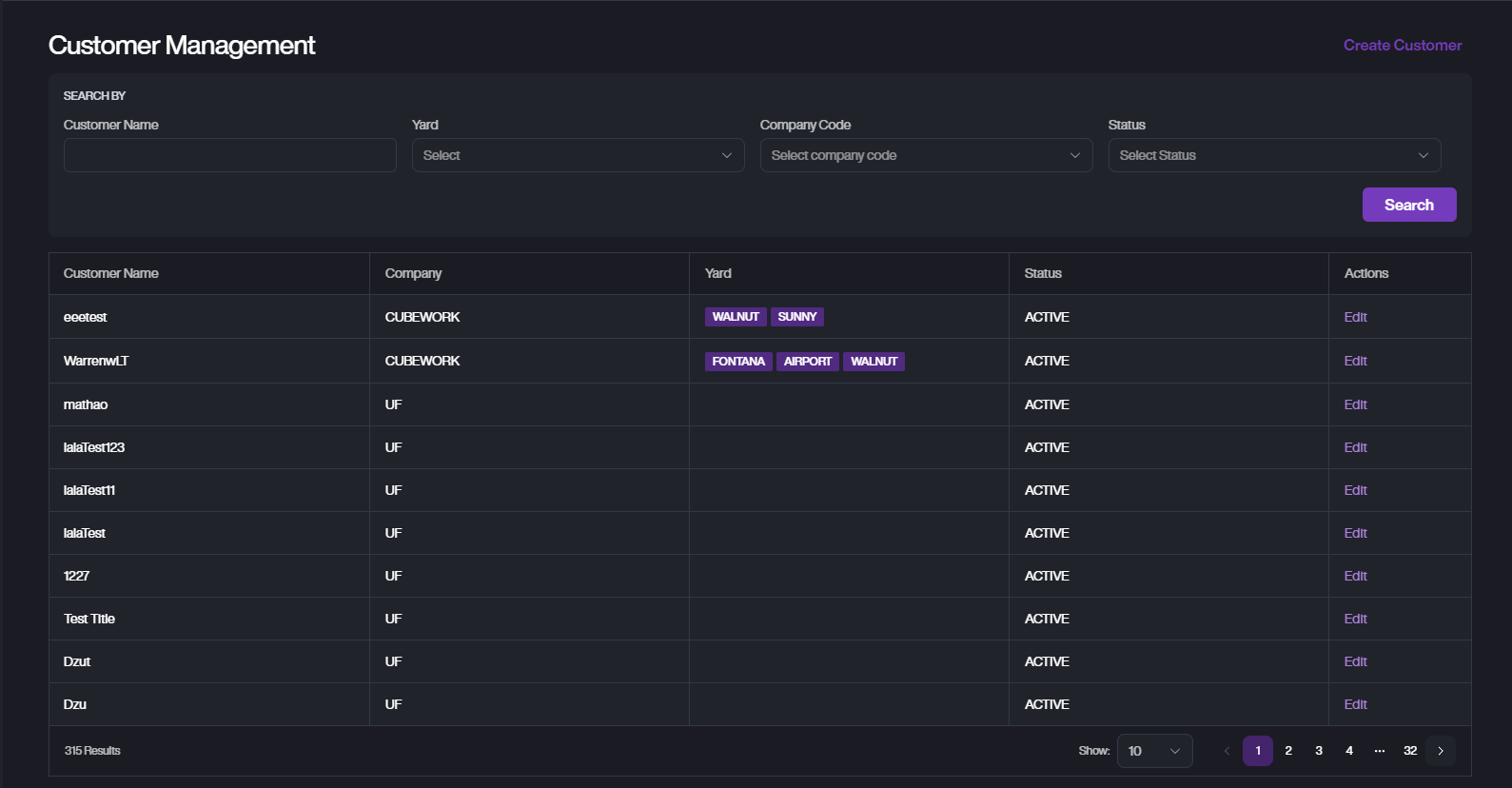
Search Customer

You can search using:
Customer Name
Yard
Company Code
Status
Create Customer
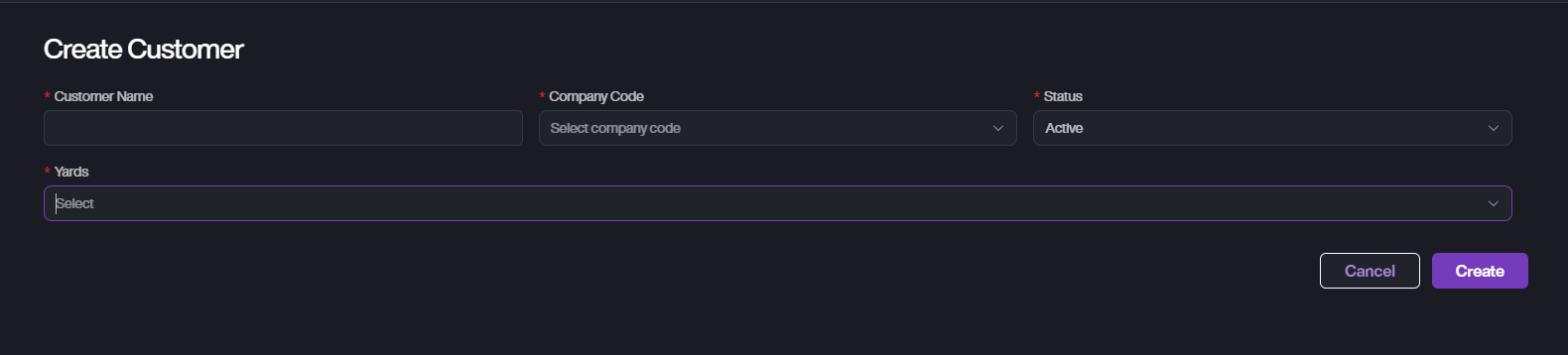
1. On the Customer Management page, click Create Customer.
2. Fill in the required fields:
Customer Name: Enter the customer name.
Company Code: Select the Cubework from the dropdown.
Status: Choose customer status (default is Active).
Yards: Select one or more yards where the customer is allowed to operate.
3. Click Create to save.
4. Click Cancel to exit without saving.
Edit Customer
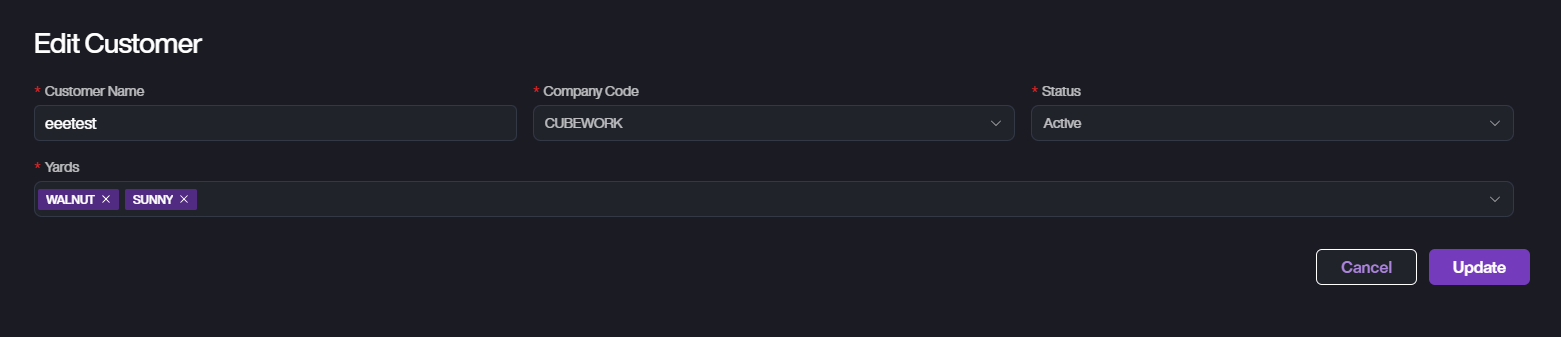
1. On the Customer Management page, locate the customer to edit.
2. Click the Edit button next to the customer's name.
3. Update the following fields as needed.
Customer Name: Modify the customer name.
Company Code: Change the company code if necessary.
Status: Update the customer status (e.g., Active, Inactive).
Yards: Add or remove the yards this customer can use.
4. After making changes, click Update to save.
5. If you do not wish to save the changes, click Cancel to exit without saving.