Order Management
Order Management
Ship has nested order list page from OMS system. This article introduces the order related operations on Ship system.
Navigate to Orders, it will display the corresponding orders under the specific tab.
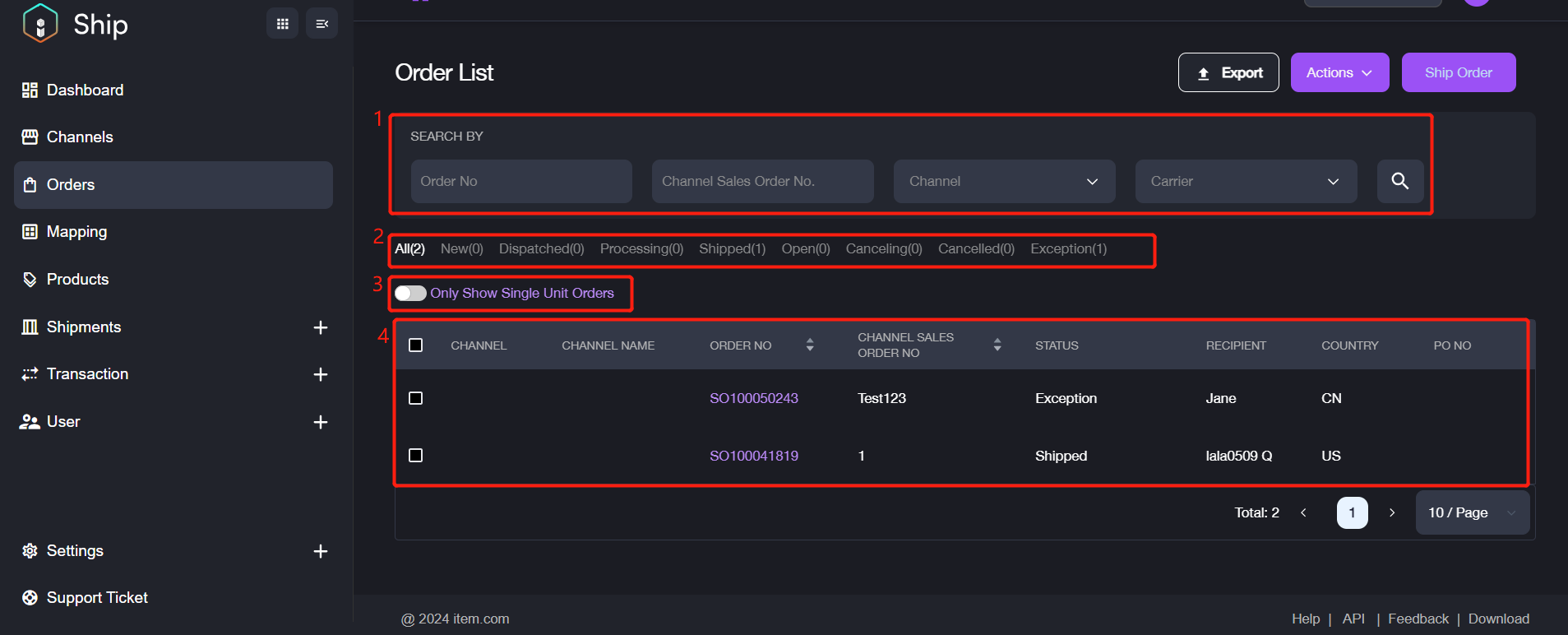
No. | Description |
|---|---|
1. | The categories for searching the order faster. Value: Order No./Channel Sales Order No./Channel/Carrier |
2. | The tabs to show the corresponding order status. Tab: All/New/Dispatched/Processing/Shipped.Open.Canceling/Canceled/Exception |
3. | The feature to toggle the display of only single unit orders. |
4. | The list of orders with details. |
If you want to view the details information of the order, please click the Order No. to view.
How to Add a New Order
If you want to create a new order on Ship, please refer to the following steps to operate.
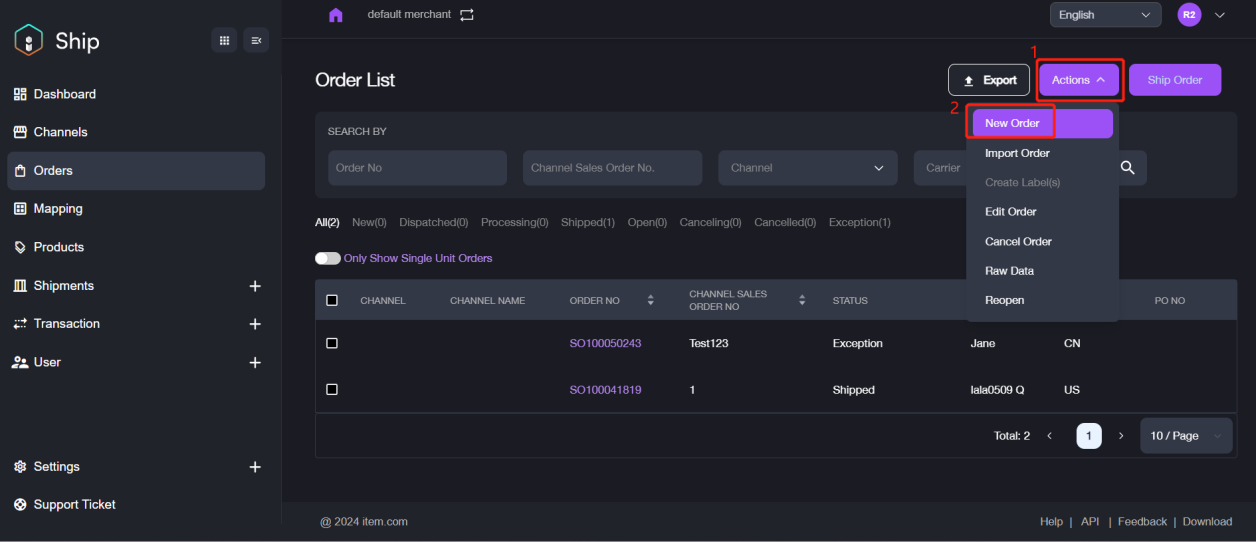
1. Click Actions button > New Order.
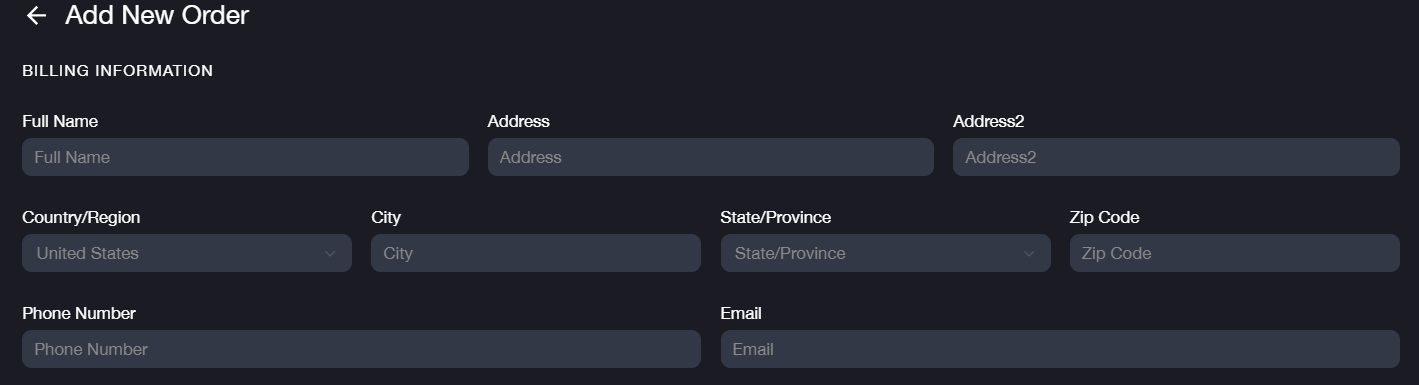
2. Fill in the corresponding billing information and shipping information.
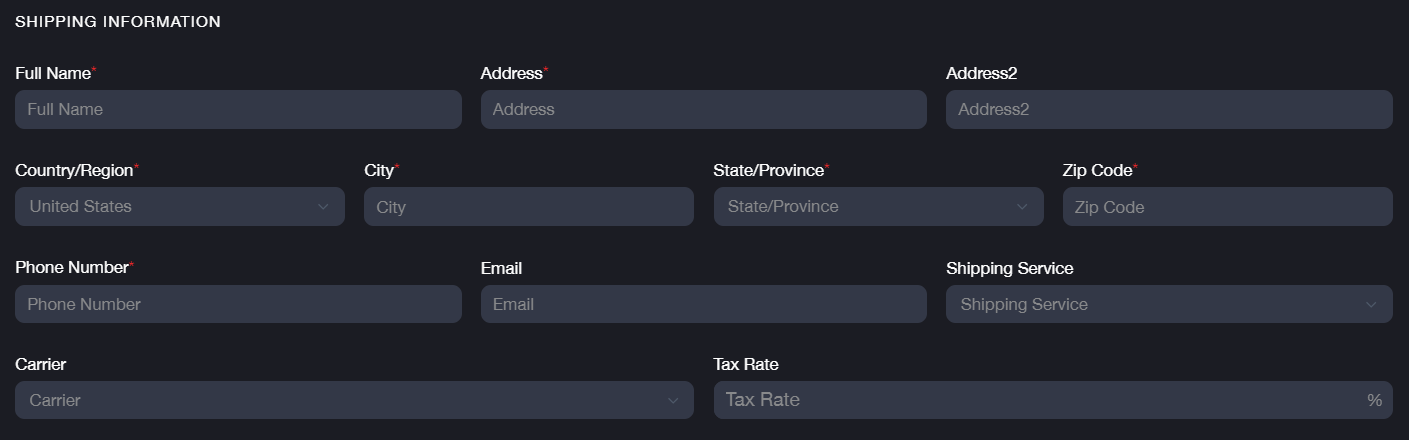
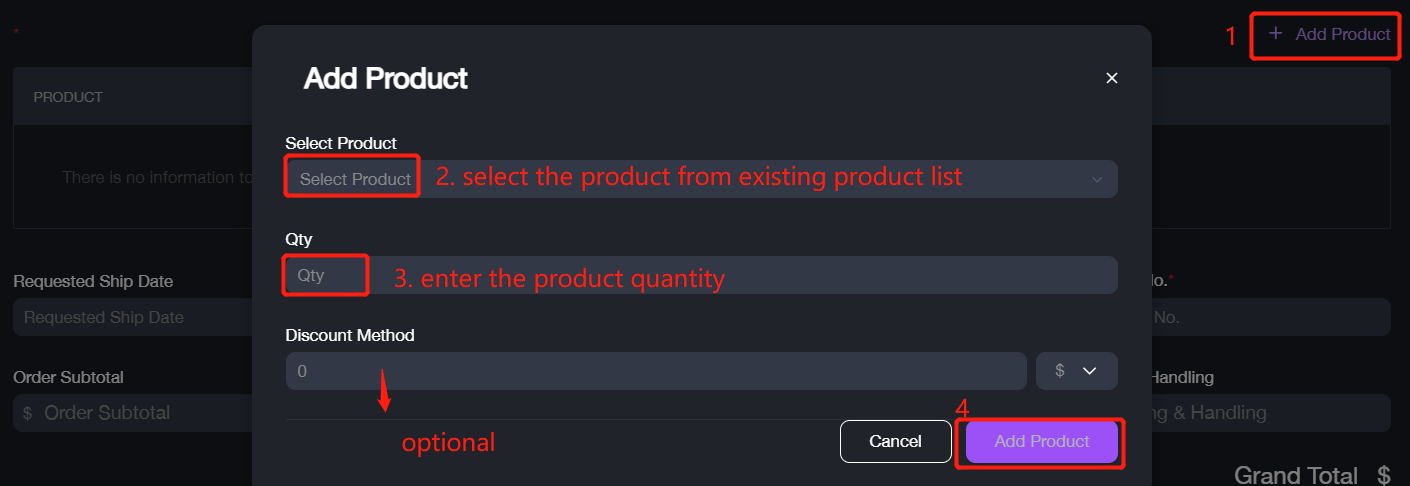
3. Scroll down to click + Add Product to select the product of this order, then enter the product quantity/discount method and click Add Product to complete the process.
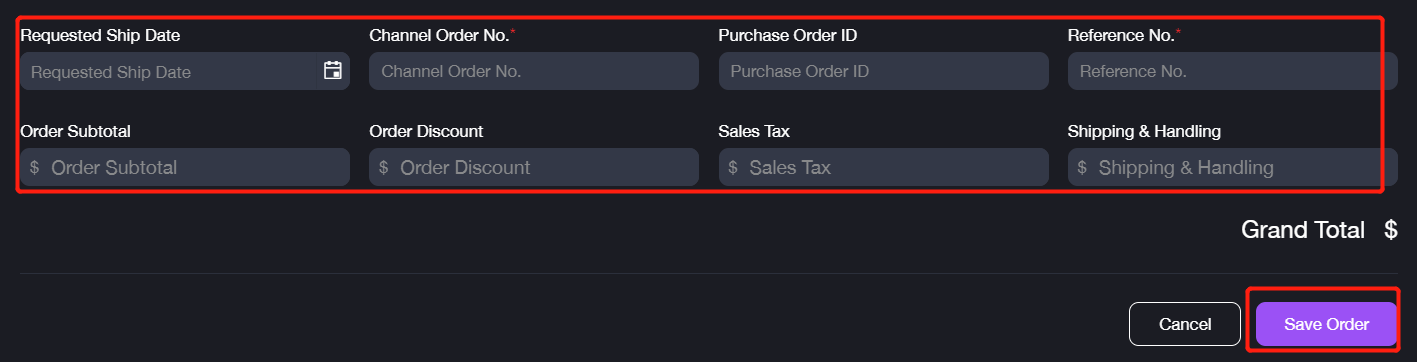
4. Scroll down to fill these information out and then click Save Order to save the order.
If you want to add the orders in bulk, please click Actions > Import Order, download the template by click Download template.
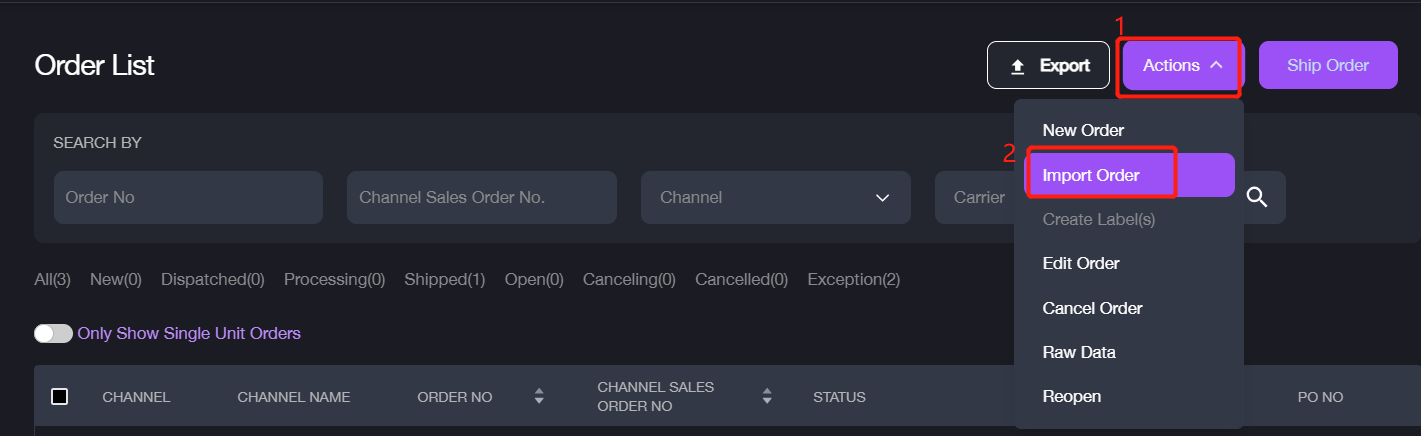
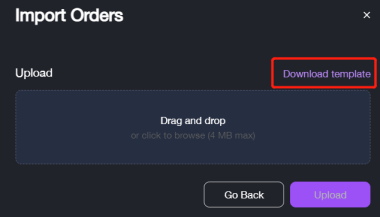
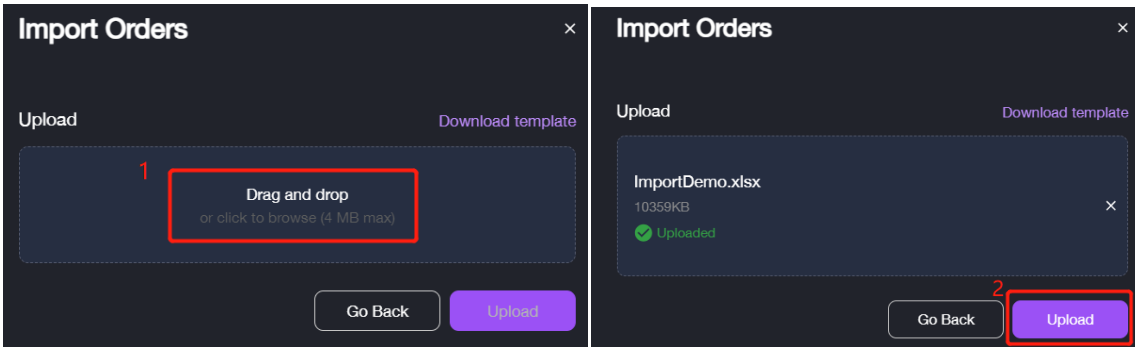
Complete filling the information out, then drag the template created and click Upload to import the orders.
How to Manage the Orders
This section introduces how to manage the orders, such as how to edit the order or ship the order.
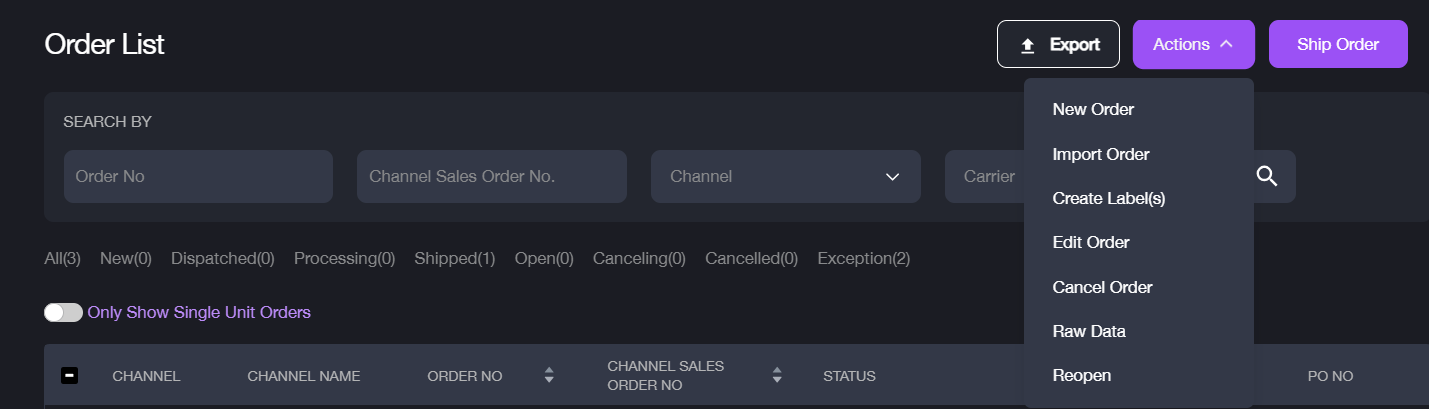
There are three buttons on the page, Export, Actions and Ship Order.
Export and Edit the Order
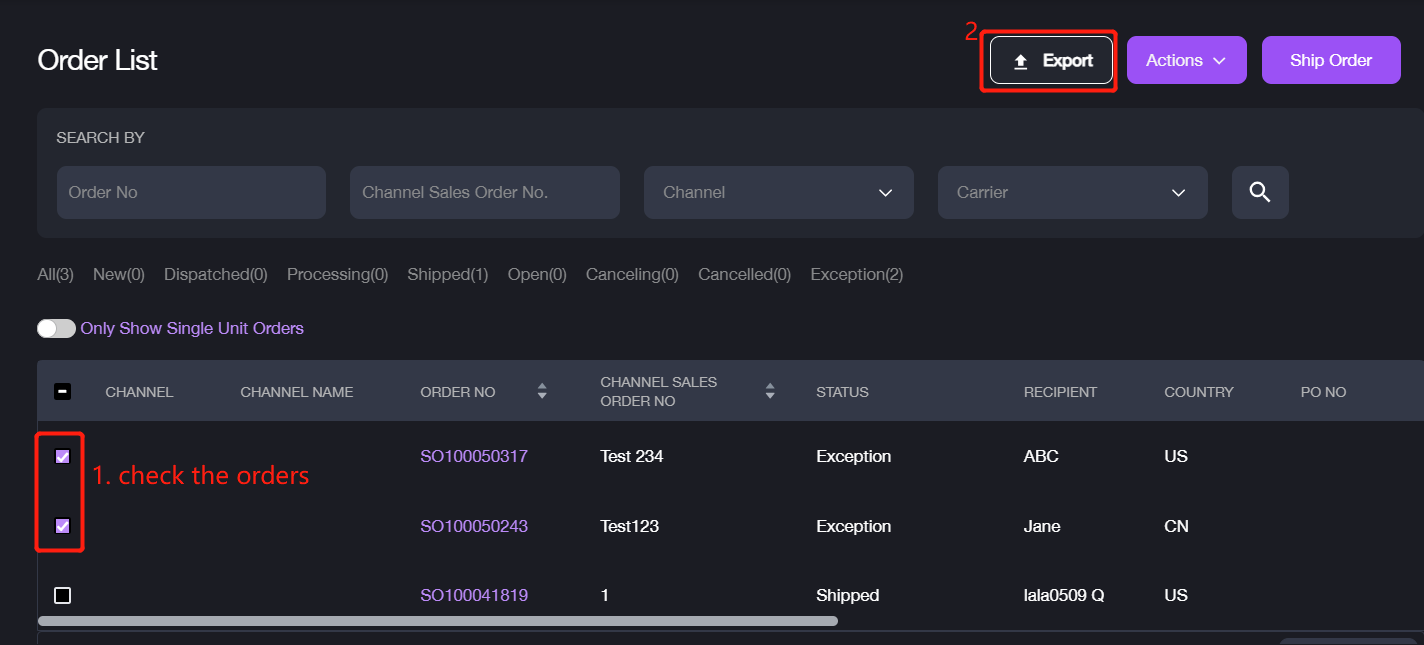
If you want to export some orders to check the details or do some internal check, please click Export to export the order lists with details.
It supports to modify the order details if you need to correct or update it. There are two methods to modify the order information, manually and in bulk.
In Bulk
1. After exporting the order details, please update the information you need then save the file. 2. Click Action > Import Orders, the information will be updated after upload successful.
Edit Manually
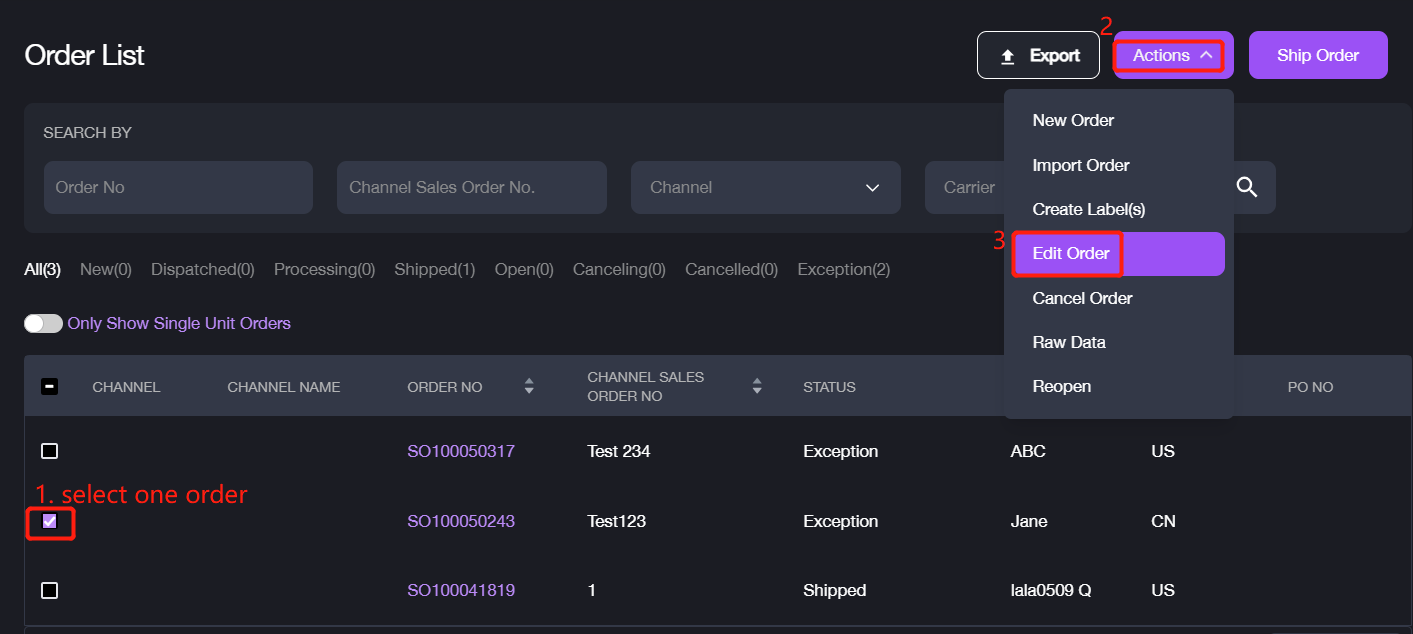
1. Select one order, click Actions > Edit Order.
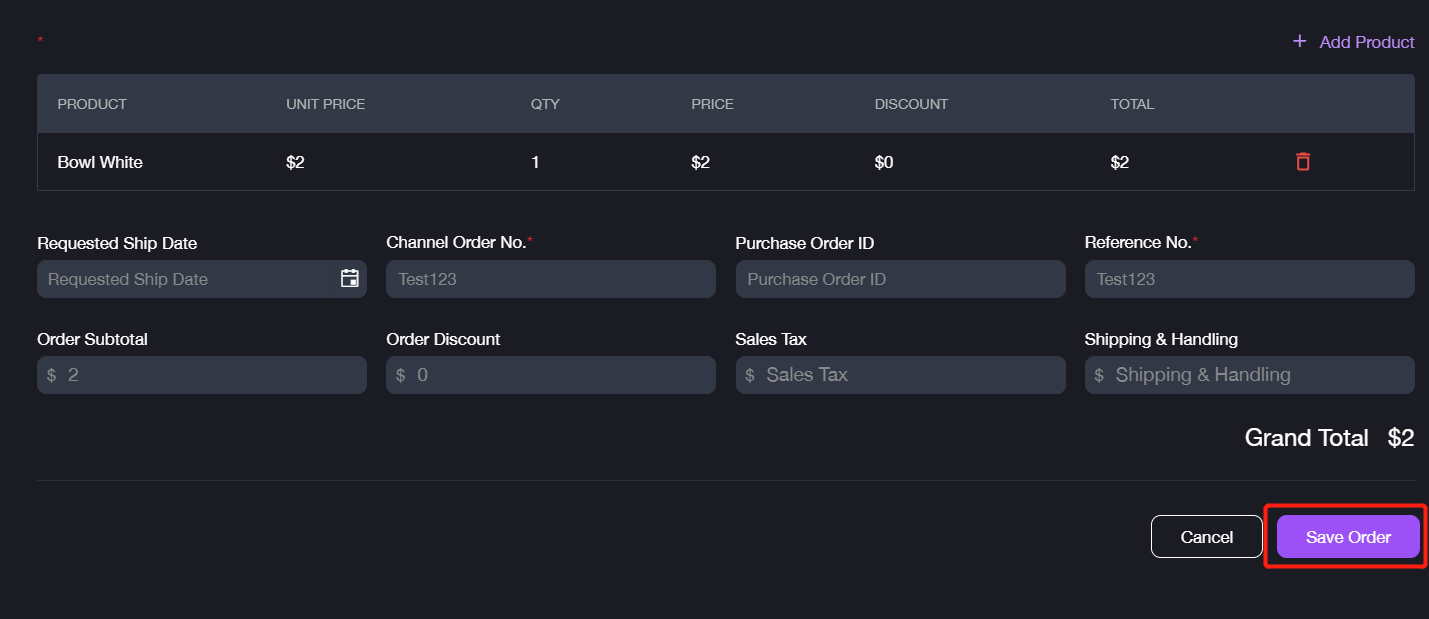
2. Go to the details page and update the information you want, then click Save Order to save these information.
Other Actions
Create Label(s): please refer to How to Print Shipping Labels from Orders Cancel Order: it only supports to cancel the order created by Item OMS. Reopen: it supports to reopen the exception order. Raw Data: it provide a interface to check the raw data of the order which is from the different channels or sources.
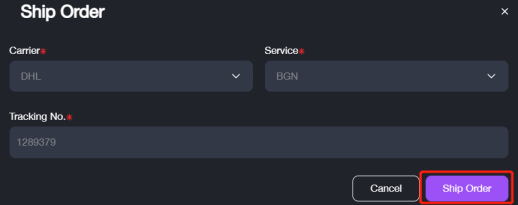
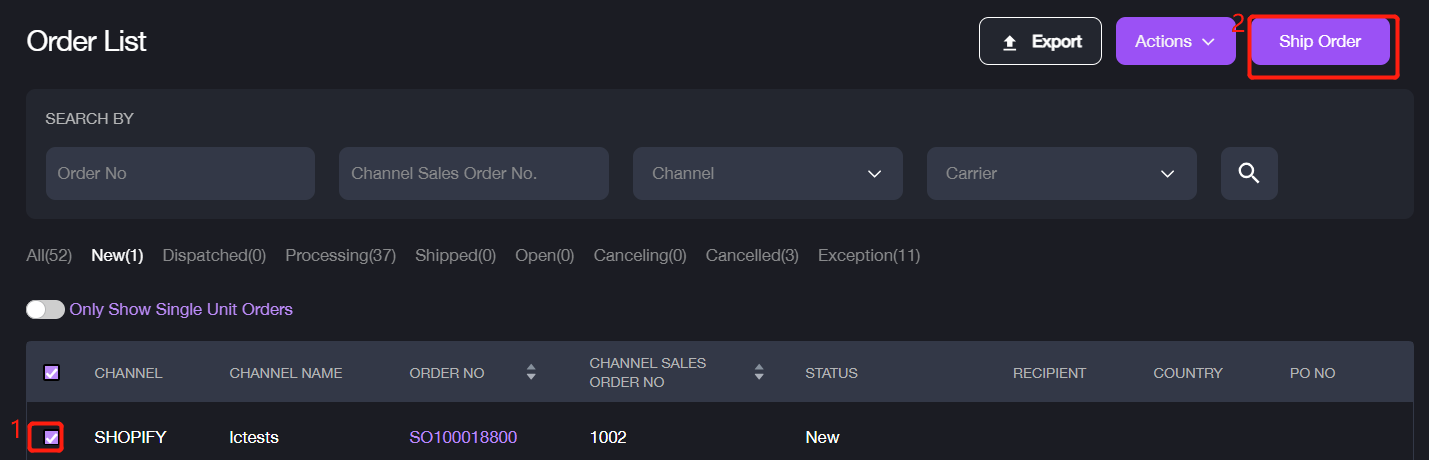
Ship Order: This feature is only available for the orders of no warehouse with new/open status for shipment.
If you want to ship the order, please select it and click Ship Order.
Fill in the required information, then click Ship Order to complete.