Sender Address Management
Sender Address Management
This article introduces how to add/edit sender address.
How to add a new sender address
1. Navigate to Settings > Ship From, you will see the all sender addresses here. 2. Click + Add New button.
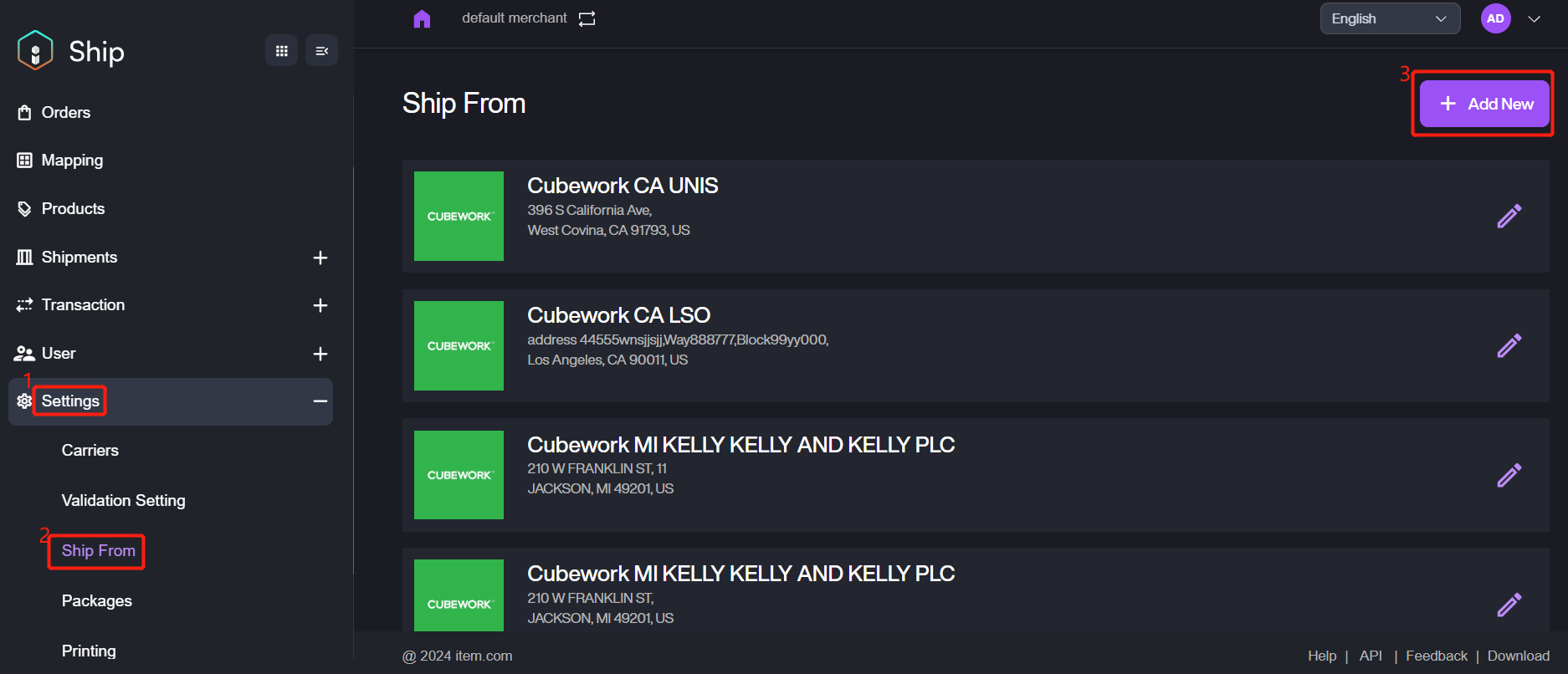
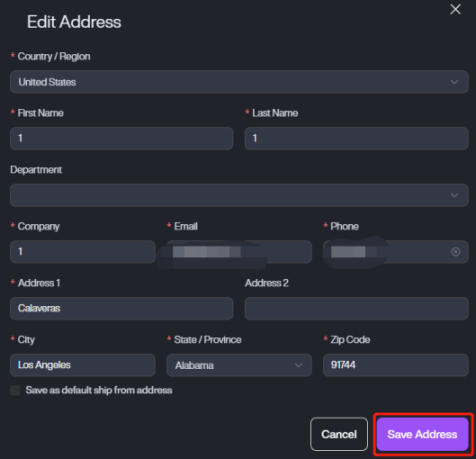
3. Fill in the corresponding information and then click Save Address to complete adding.
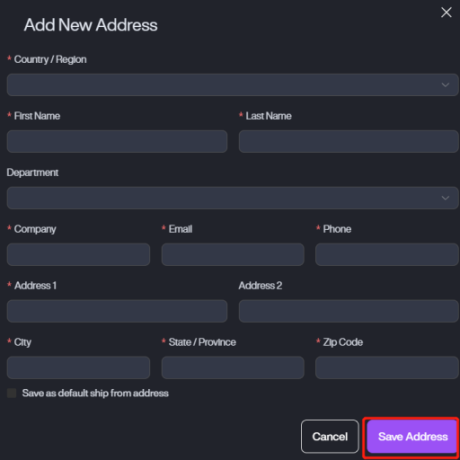
Parameter | Description |
|---|---|
Country/Region | Select the country/region where the sender is. |
First Name | The first name of the sender. |
Last Name | The last name of the sender. |
Department | The department of the sender. |
Company | The company name of the sender. |
The email address of the sender. | |
Phone | The phone number of the sender. |
Address 1/Address 2 | The address of the sender. |
City | The city where the sender is. |
State/Province | Select the state/province where the sender is. |
Zip Code | The zip code of the sender. |
Save as default ship from address | Setup the default address. Disable is as default. |
How to edit the sender address
Sometimes you need to update the sender address, as the sender has changed some information like phone number. Please refer to the steps below to edit the information.
1. Navigate to Settings > Ship From, confirm the target sender address and click the pencil icon button.
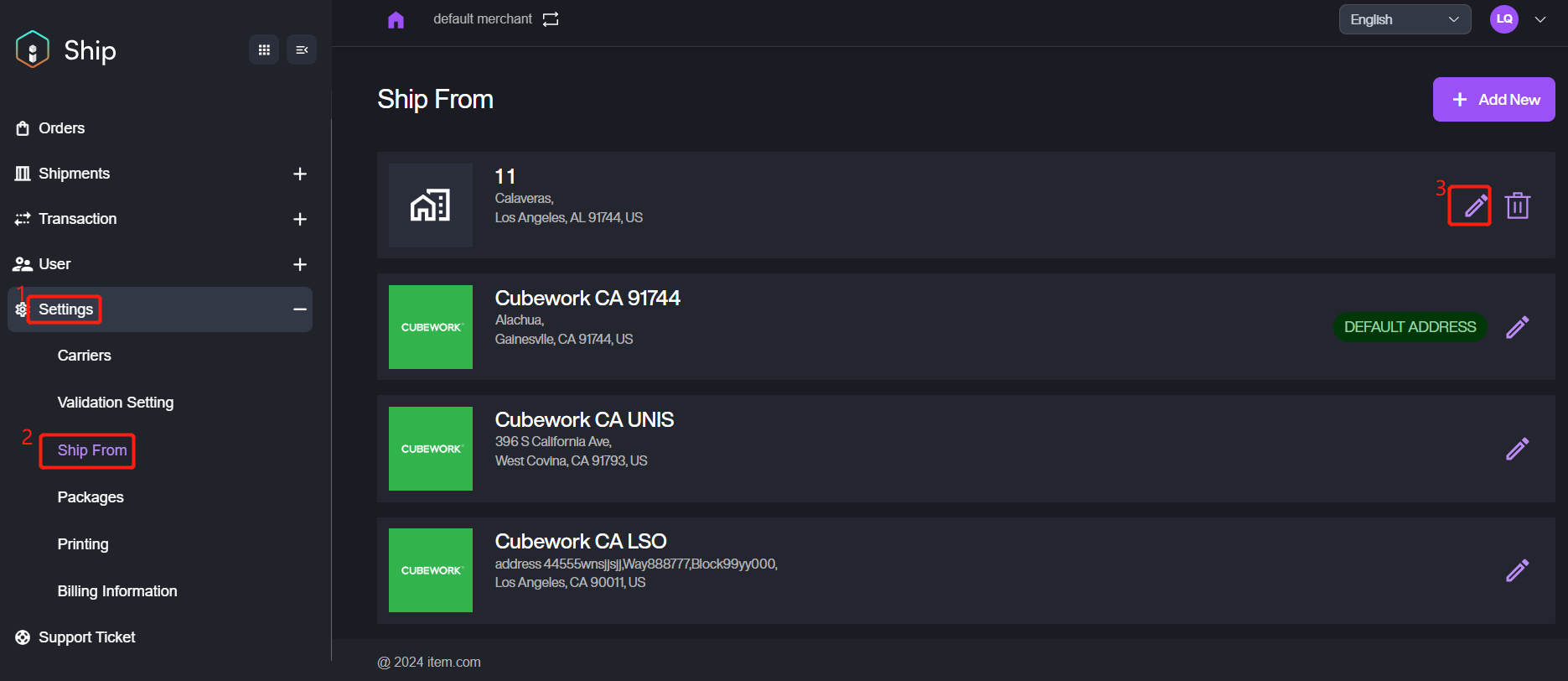
2. Update the address information you need, then click Save Address to save the updated information.
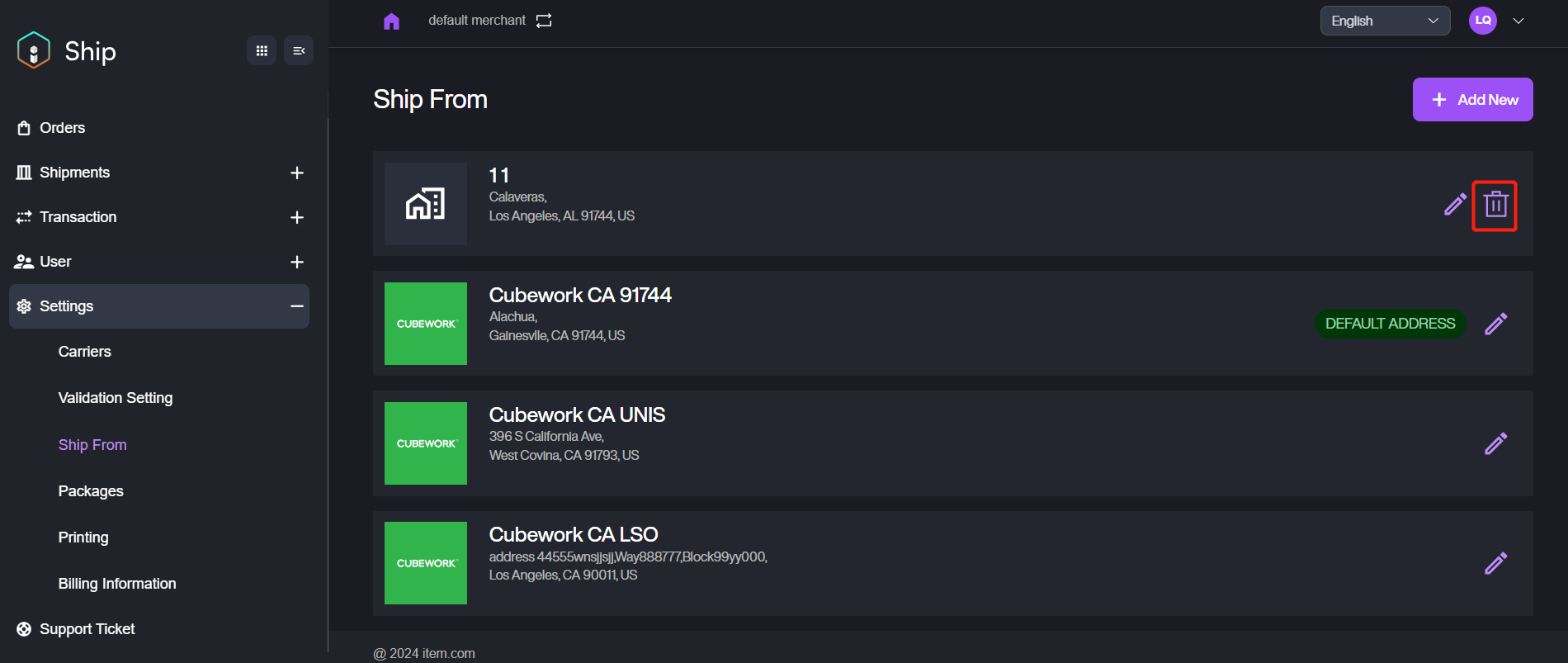
If the sender address has no longer used, you can click this button to delete it.