Package Management
Package Management
When you need to ship using a specific package, you can preset the package information in the settings. This article introduces how to create package template for label purchase.
If you apply the same weight unit and dimension unit for all package specifications, please setup the default weight unit and dimensions under Settings > Packages > Packages section.
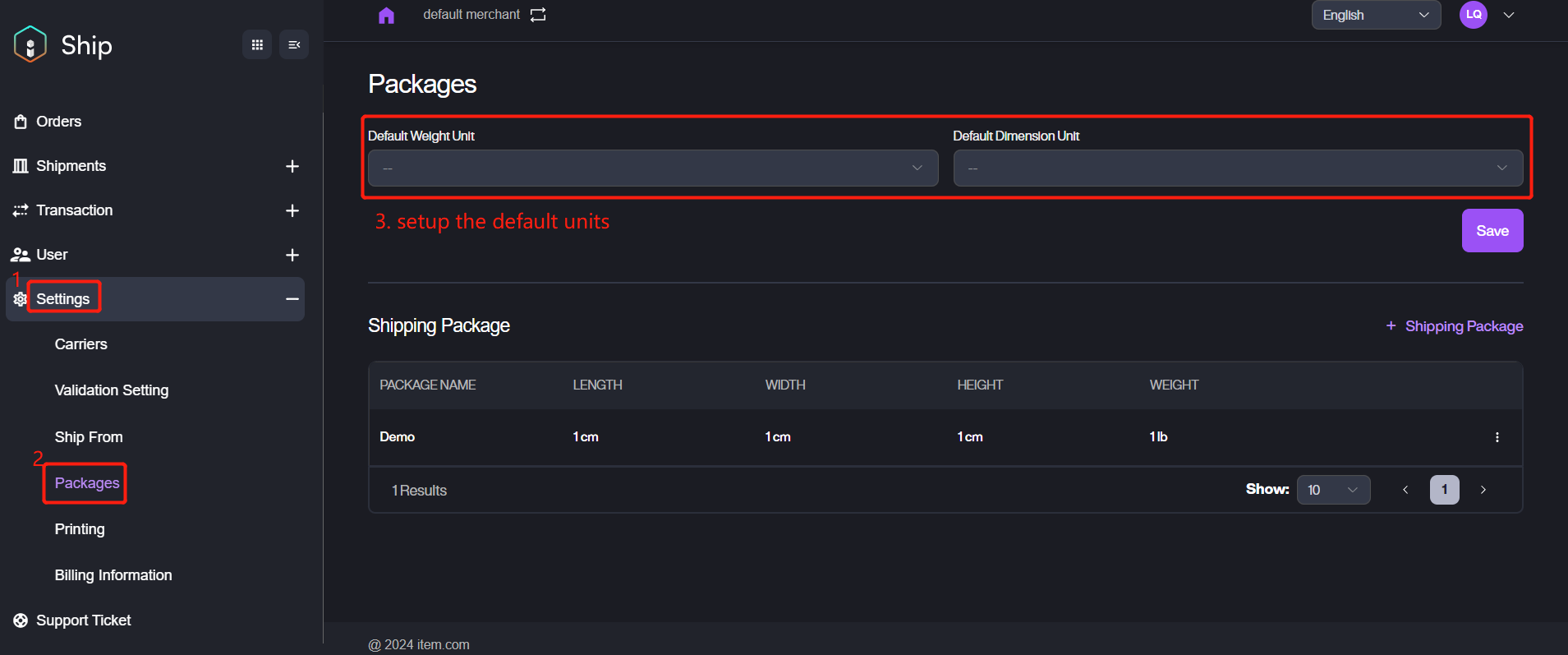
After setting the default units, the system will automatically select the units for you in subsequent operations, it will save your time.
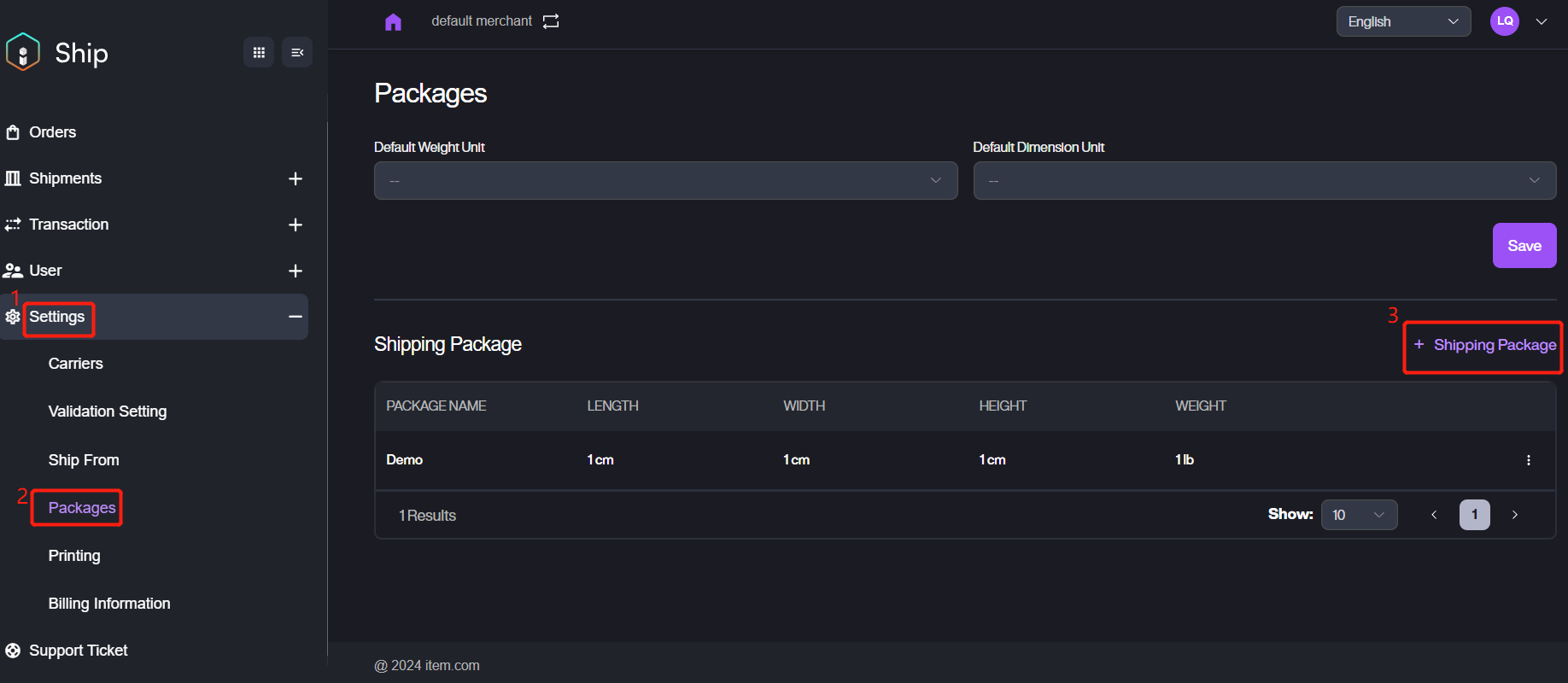
There are the steps for adding a new shipping package. 1. Navigate to Settings >Packages, click + Shipping Package button.
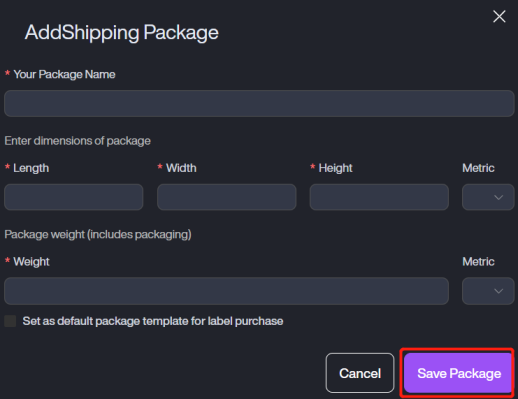
2. Fill in the corresponding information and click Save Package to save the package details.
Parameter | Description |
|---|---|
Your Package Name | The name of the package. |
Length | The length of the package. |
Width | The width of the package. |
Height | The height of the package. |
Metric | The metric of the dimensions of package. Value: cm and inch. |
Weight | The weight including packaging of the package. |
Metric | The metric of the package weight. Value: kg and lb. |
Set as default package template for label purchase | Setup the default package template. |
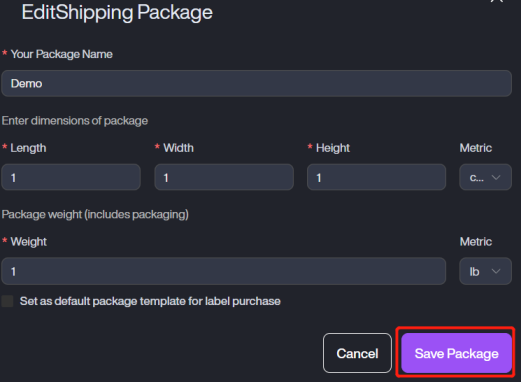
If you want to modify the existed shipping package, please confirm the target package and then click three dots button > Edit.
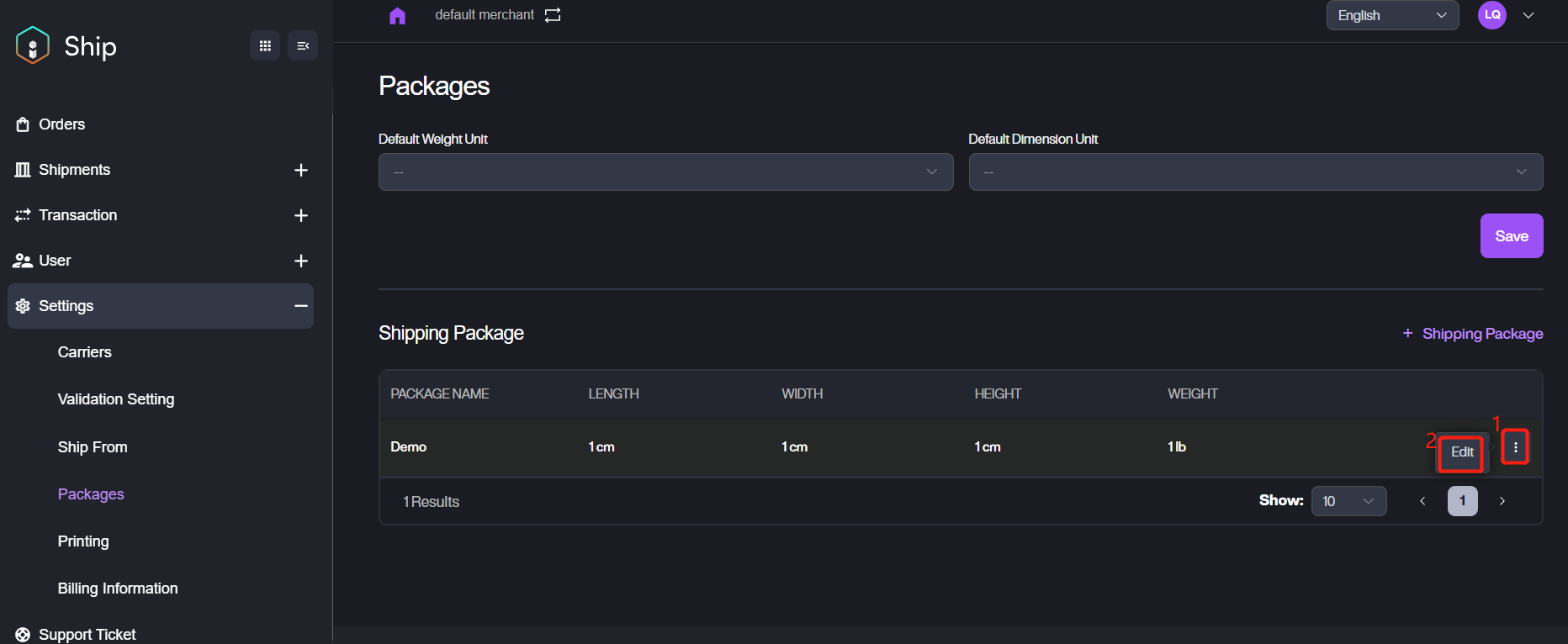
Update the information needed, then click Save Package to save the information.