How to Print Shipping Labels from Orders
How to Print Labels from Orders
If you lack a simple inventory management system system like WMS, you can manage shipments directly through order processing. This article introduces the operations on how to print labels from orders.
Note:
This feature is only available for new or open orders.
Please ensure the following configurations has been set, to avoid printing failure. Conditions:
Setup Shipping Account
Setup Sender Address (Ship From)
Setup Packages
Install and run Printer Hub
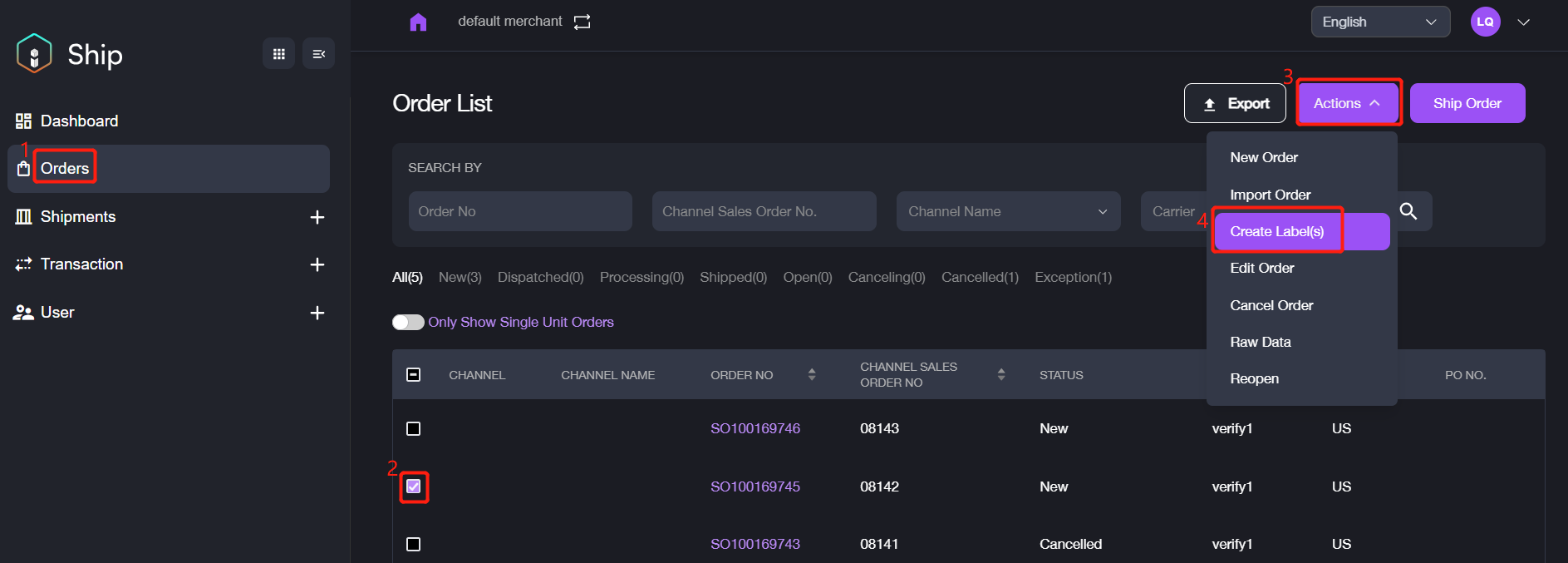
1. Navigate to Orders, it will display the order list on the right screen.
2. Select the target order (orders), click Action Button > Create Label(s).
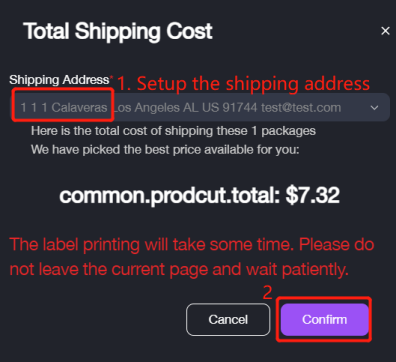
3. Select a shipping address for this order, it will calculate the shipping cost automatically.
4. Click Confirm button to complete.
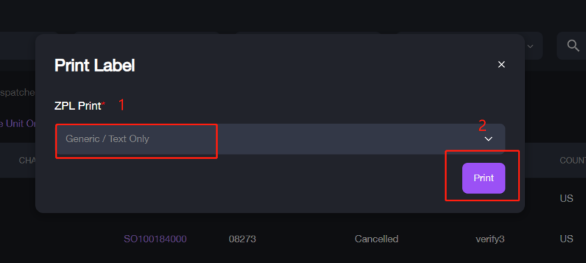
5. After that, please select the printer to complete label printing.