Inventory Commitment
Inventory Commitment
Inventory Commitment confirms inventory that will be picked for an order. This prevent issues and shortages during the picking process, as these issue become visible priori to processing the order. This article introduces the preconditions and the related operations of inventory commitment.
Preconditions
Before committing inventory, please have the following information ready.
Parameter | Value |
|---|---|
Customer | Customer name. |
Status | Open, Imported, Committed, Planned, Loaded and Shipped. |
Order Type | Dropship, Regular Order |
Source | EDI, DTS, Manual. |
Note:
A major reason for Delivery Notifications failing or being canceled is lacking of inventory to support the order. So please check the amount of inventory firstly before building a commitment.
How to Search Commitment Report
There are two searching methods supported: Keyword Search and Advanced Search.
Keyword Search
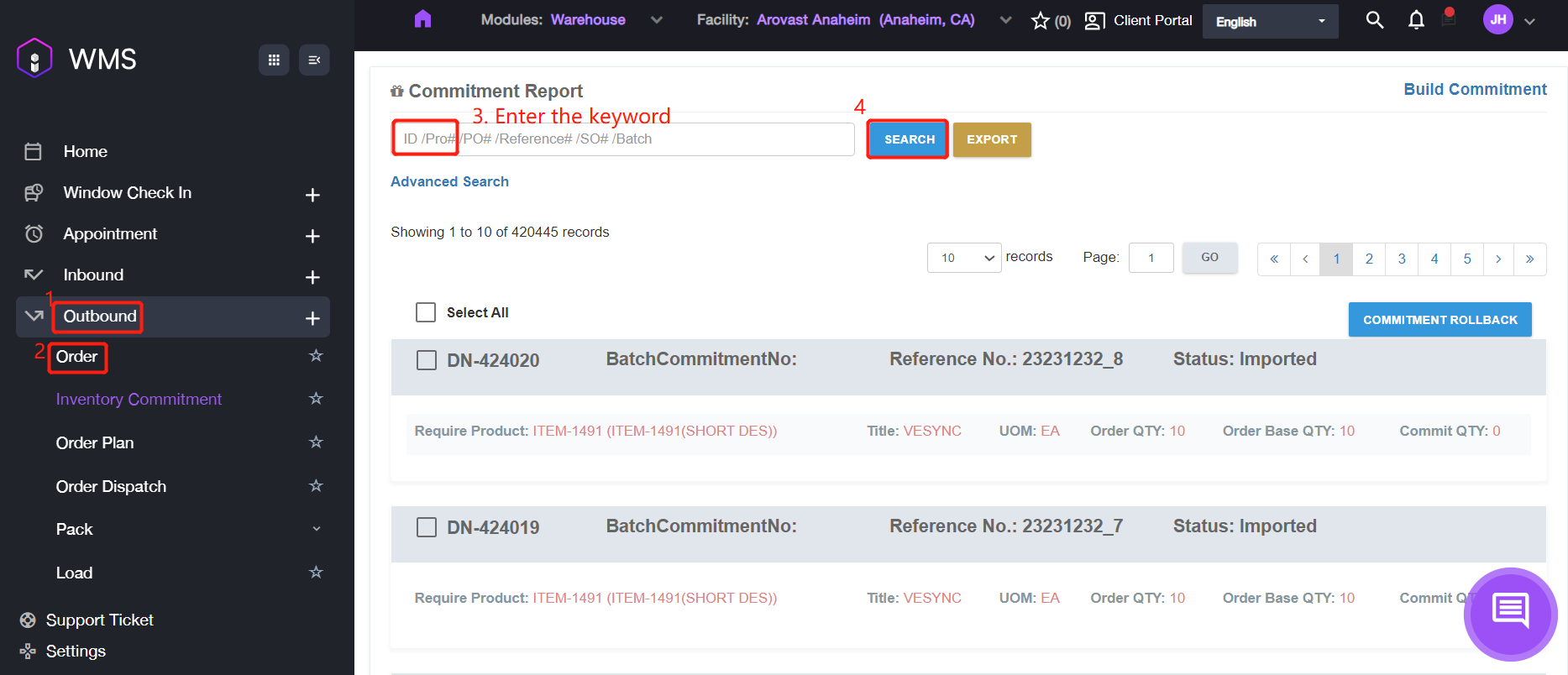
1. Navigate to Outbound > Inventory Commitment, it will display commitment report list.
2. If you remember any keywords of the commitment such as Pro No/PO No, please enter the keyword into the input box then click SEARCH to search the corresponding commitment records.
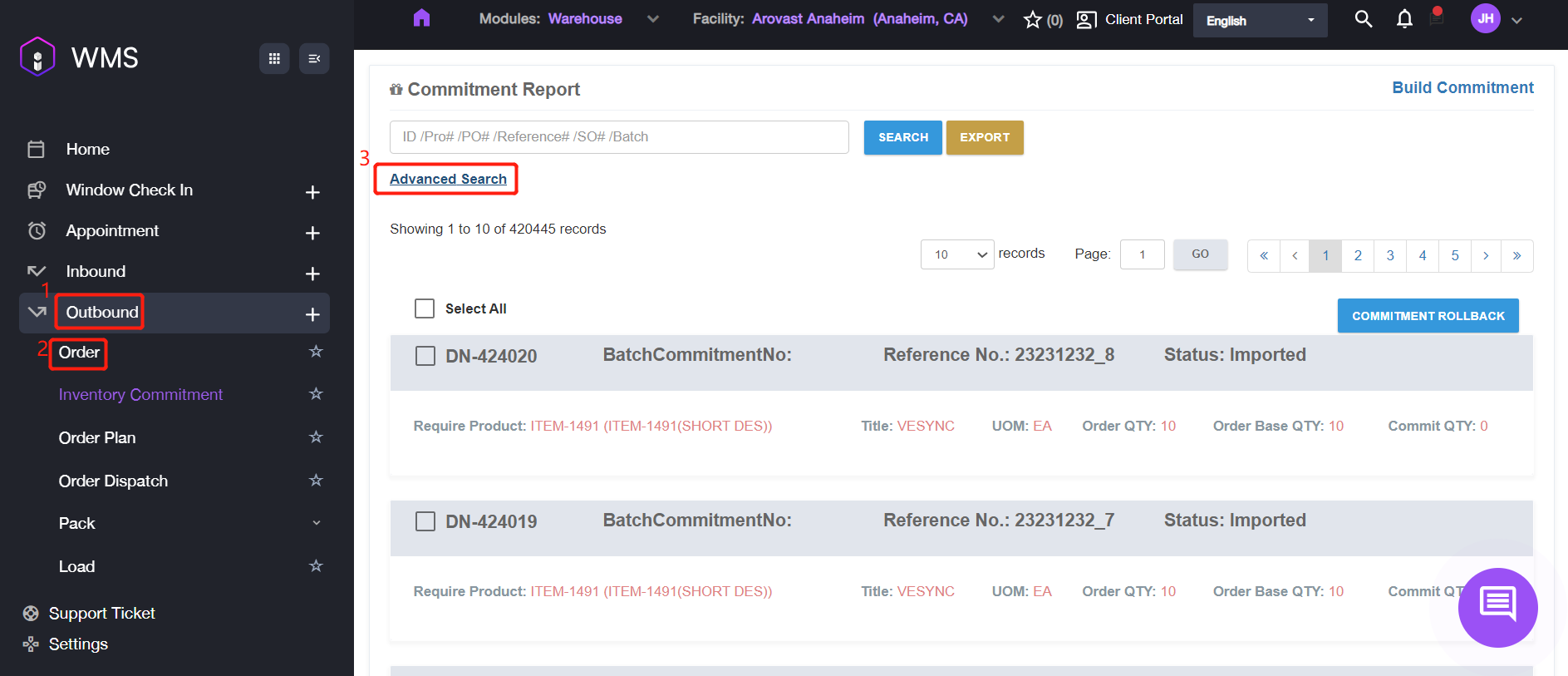
Advanced Search
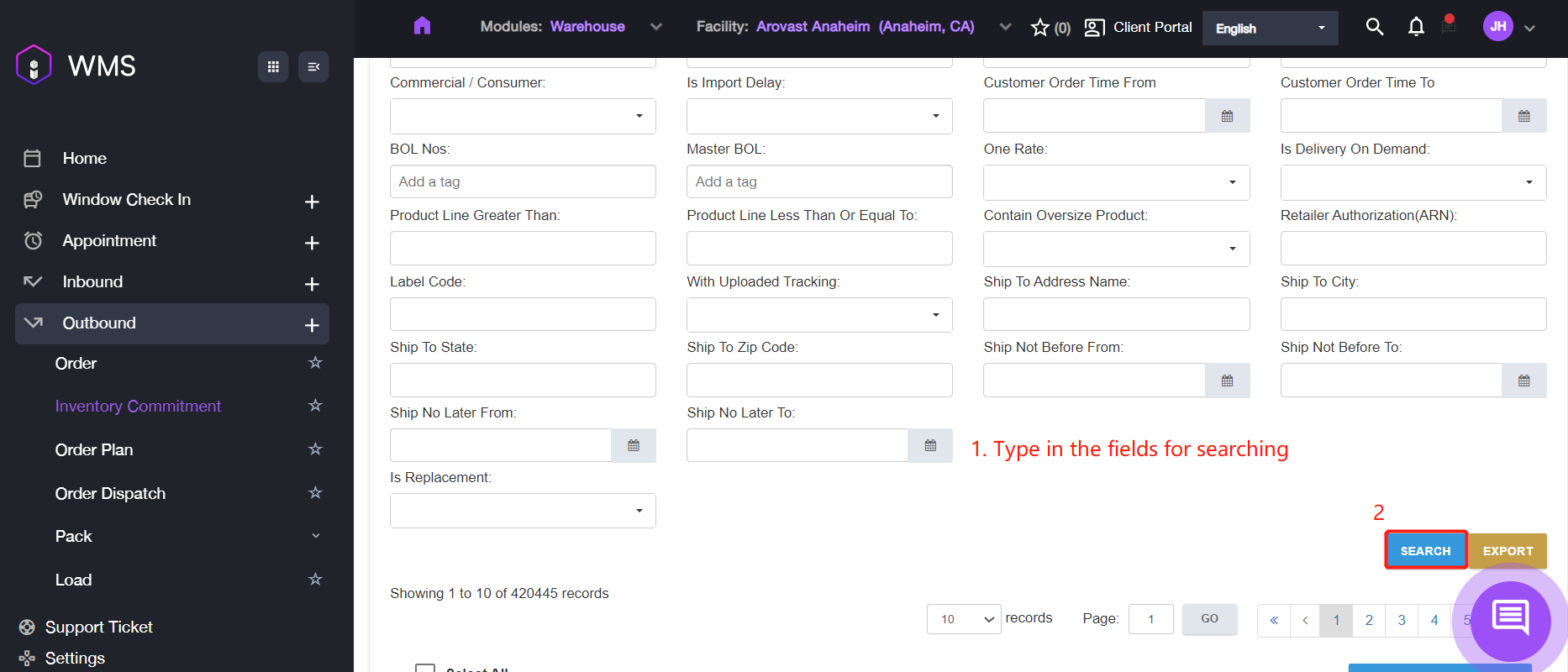
1. If there are still too many results after filtering keyword or if you want to search some specific fields such as Status, Product Level or Order Type. Please switch the searching method by clicking Advanced Search.
2. Fill out the fields information then scroll down to click SEARCH button for searching.
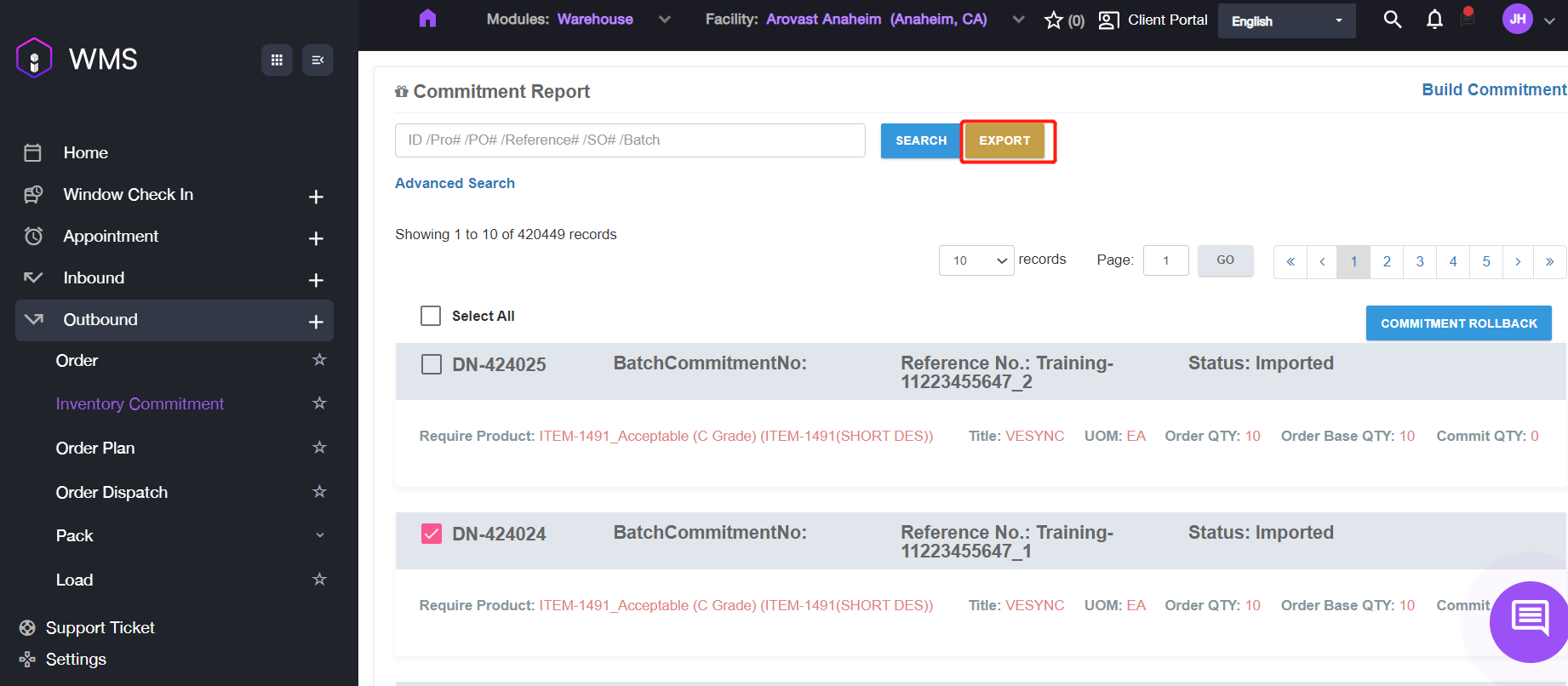
If you want to export the order list for some specific usage, please click EXPORT button to export the data files.
How to Create a New Commitment
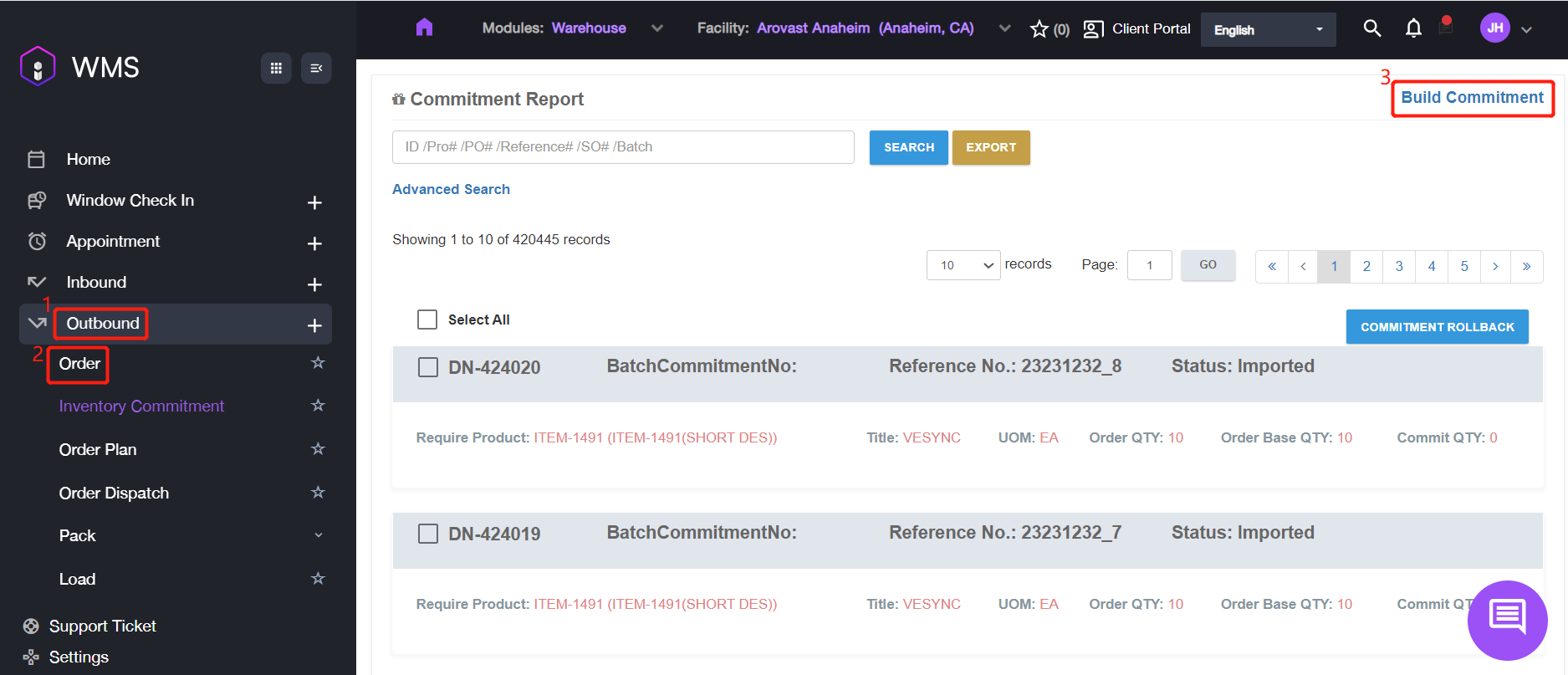
1. Navigate to Outbound > Inventory Commitment > Build Commitment.
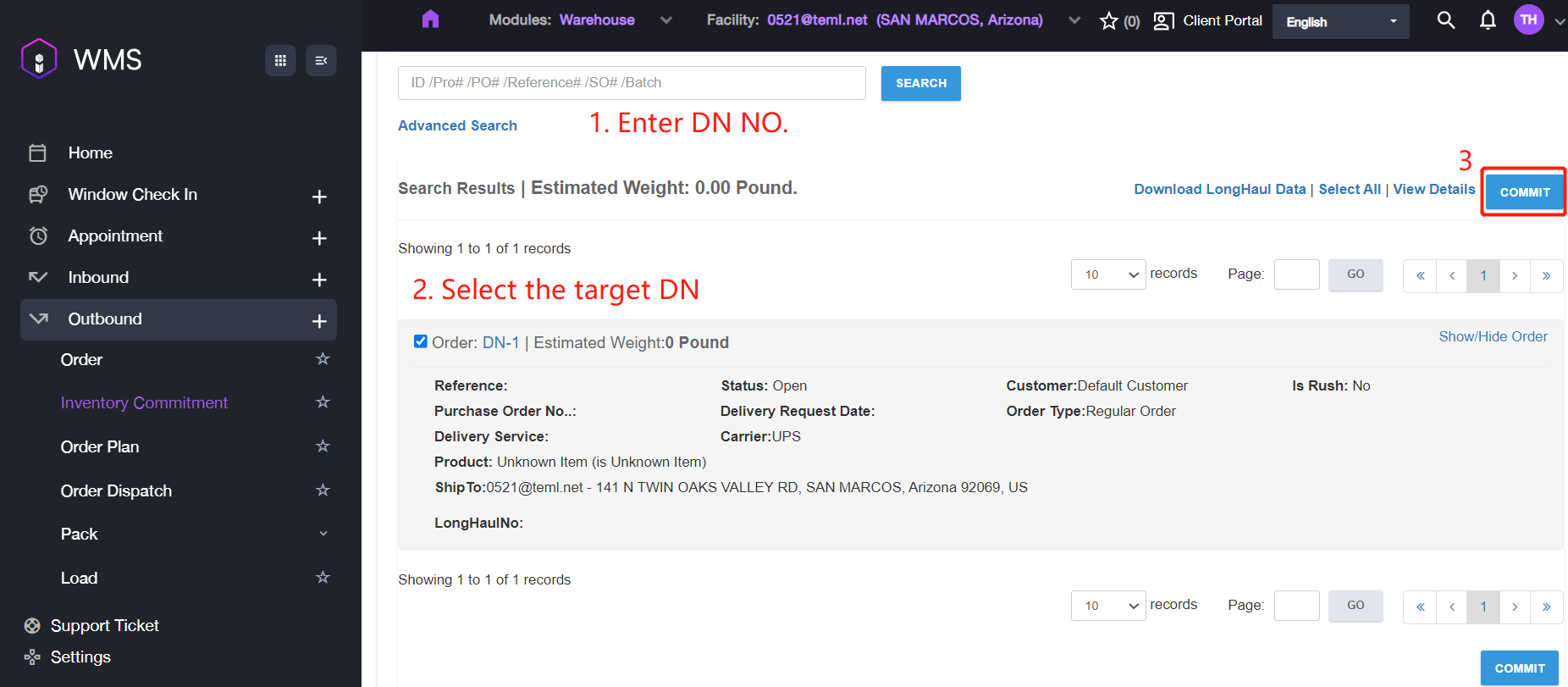
2. Enter the DN number planned for inventory commitment into the search bar to select the target DN from the list below. Then click COMMIT button.
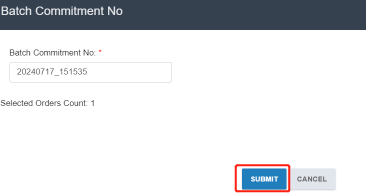
3. Make a note of the automatically assigned Batch Commitment Number for future use, and then click SUBMIT to complete.
4. Please confirm whether the inventory status if Committed. If it is Commit Blocked or Commit Failed, determine the cause of the problem and retry committing the inventory.
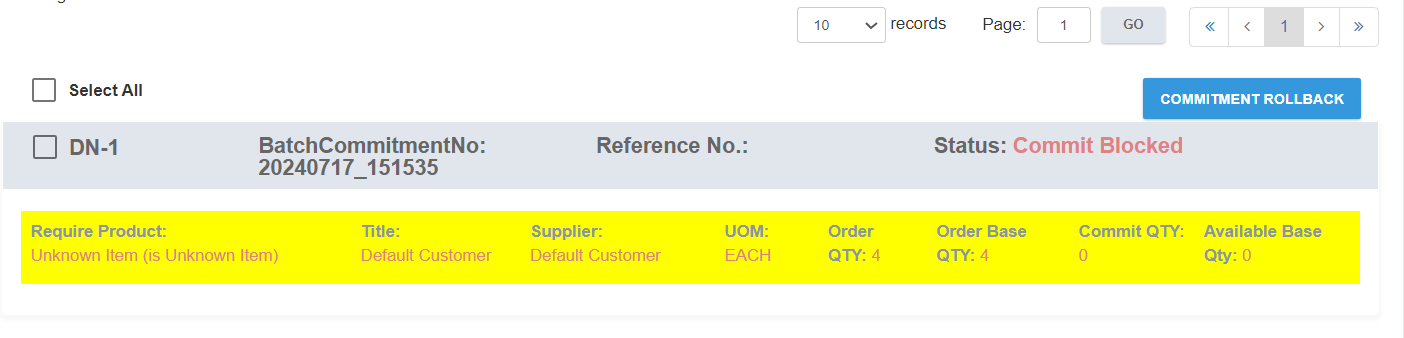
Here lists some common blockers below.
No. | Reason | Description |
|---|---|---|
1. | Lack of available inventory | Requires receiving or restocking inventory to available locations. |
2. | Inventory is in a locked location | Requires moving inventory to an available location. |
3. | Inventory is already committed to another order | Requires cancellation of previous order, or receiving / restocking more inventory to an available location. |
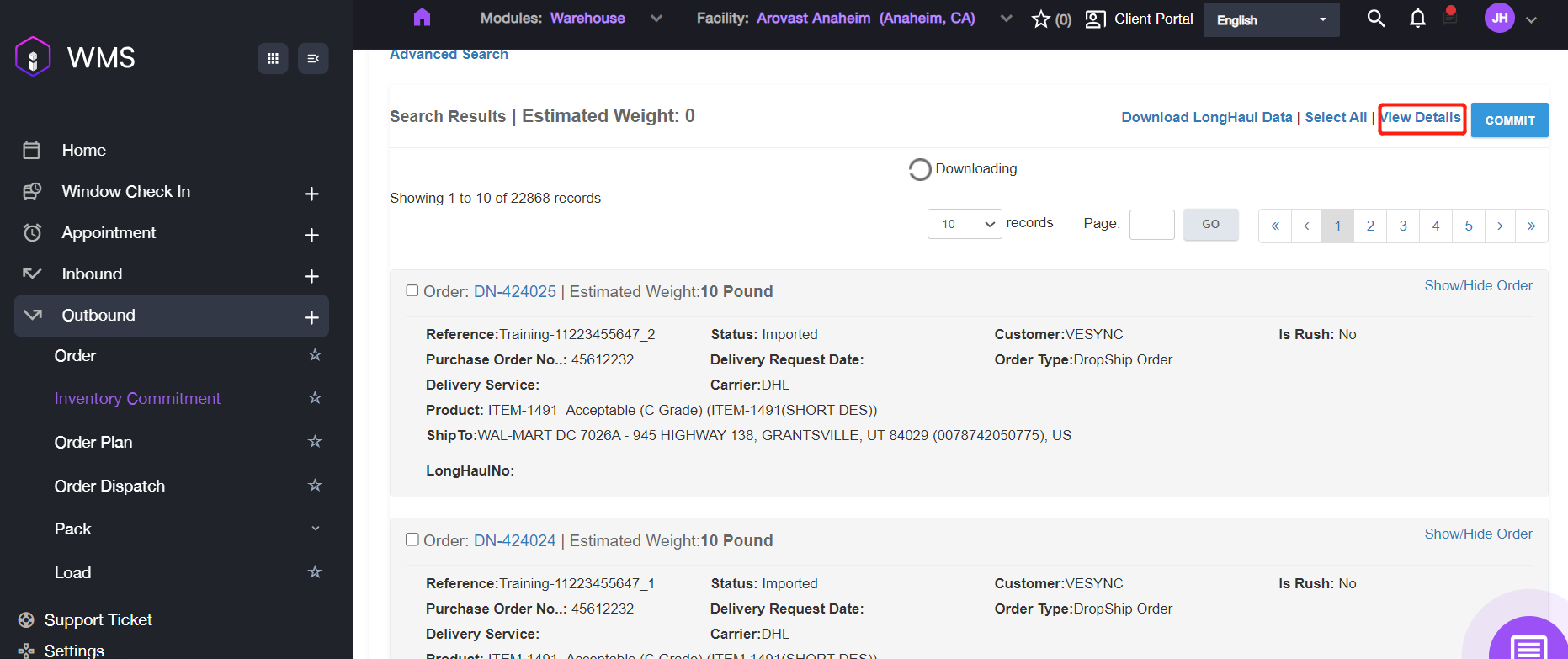
In the Build Commitment page, it also support to download long haul data and view order details. Click Download LongHaul Data to export long haul data file.
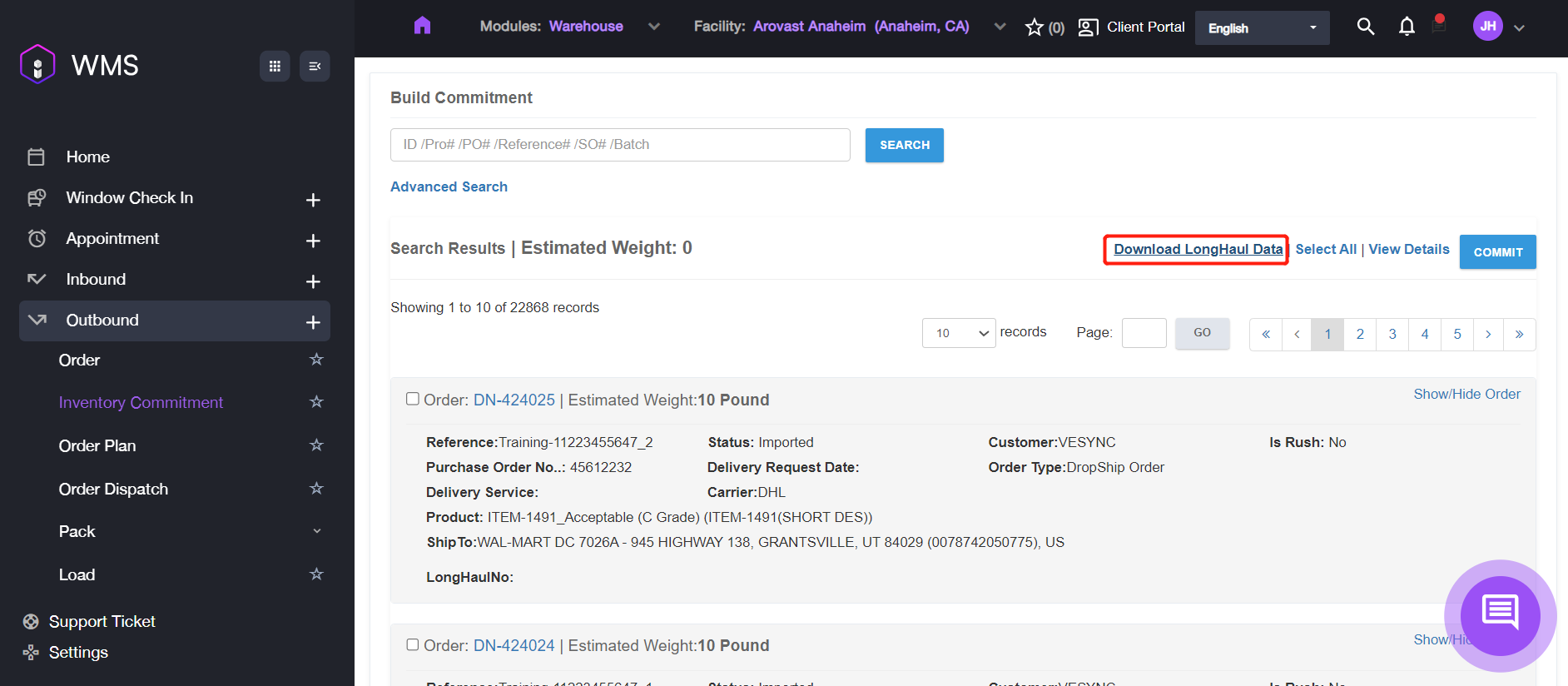
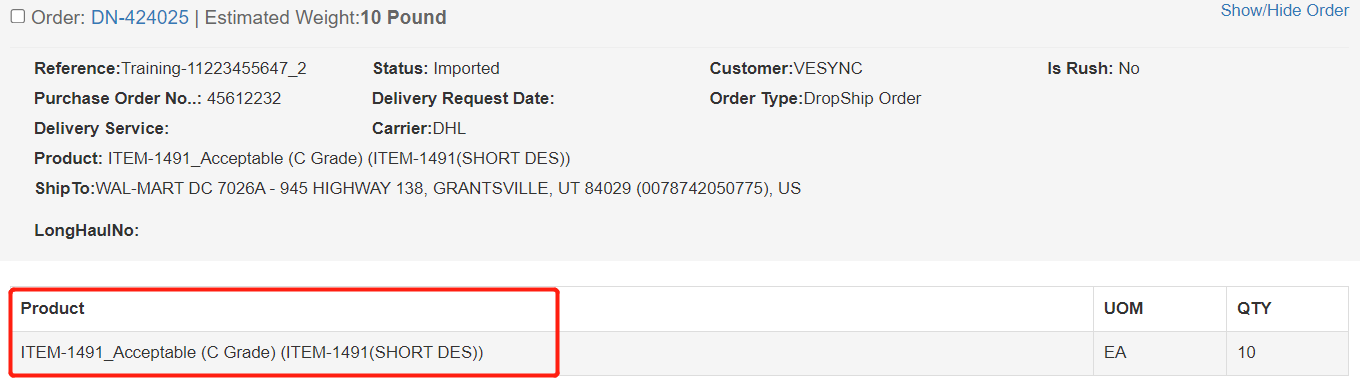
Click View Details to check the product detail of corresponding orders.