
Settings
Settings
You can directly apply predefined flow templates such as product, order, or inventory sync to merchants and related connectors in the Settings section.
Preresequites
Before configuration, ensure the following settings are ready:
Merchant
Connectors
Flow Template
Configuring Data Flows
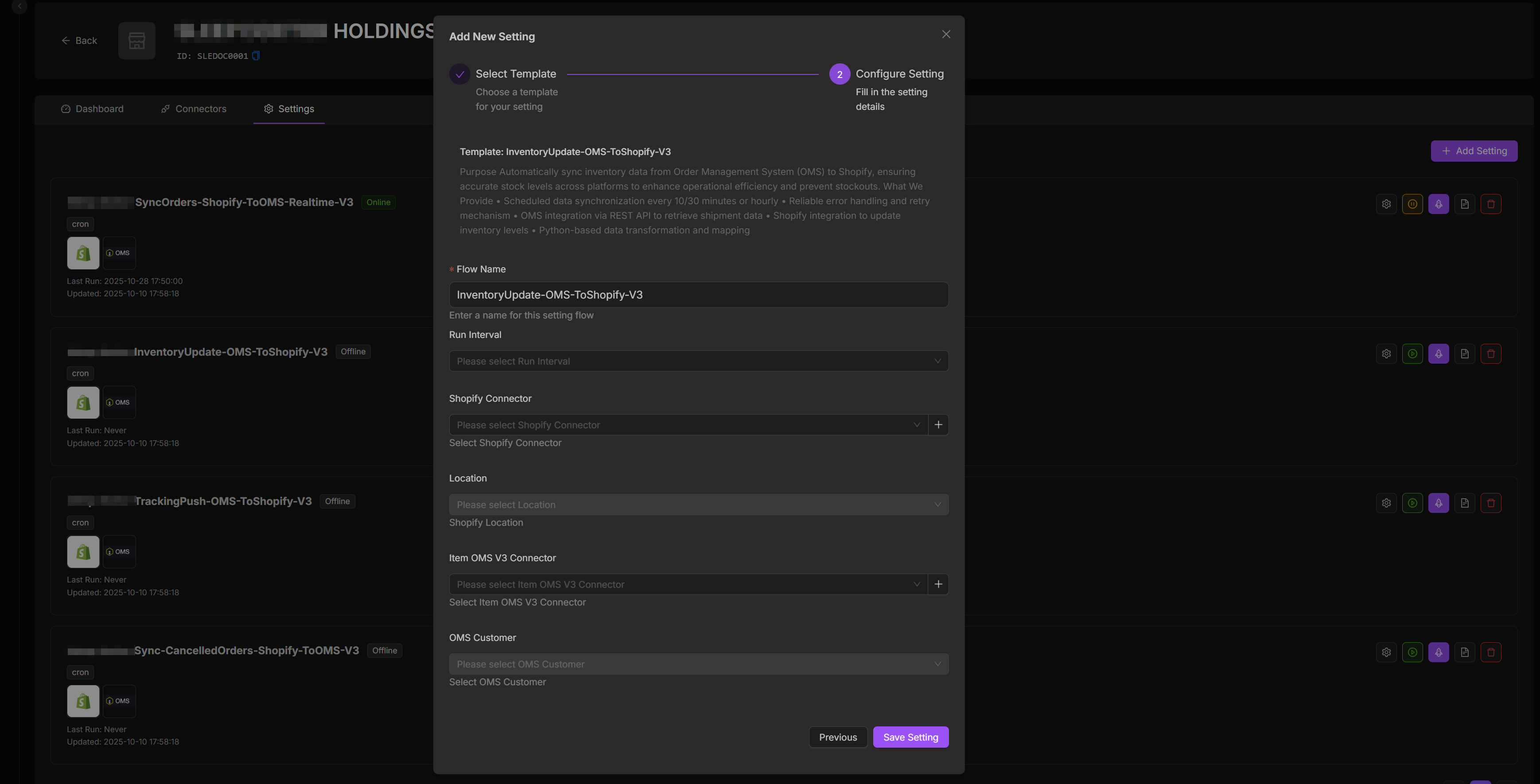
To add settings:
1. Navigate to the Settings tab under the desired merchant and Click Add Setting. 2. Choose a flow template that matches your business scenario. 3. Choose how frequently the flow should run (e.g., every 2 mins, 10 mins, 30 mins or per hour). 4. Configure required fields defined by the selected template. 5. Assign the connectors for both the source and destination systems. 6. Click Save Setting. Once activated, the flow template will run automatically according to the configured schedule.
Managing Flow Settings
Once a flow template is configured, it appears under the Settings List. You can use the quick-action buttons on the right side of each setting for immediate operations:
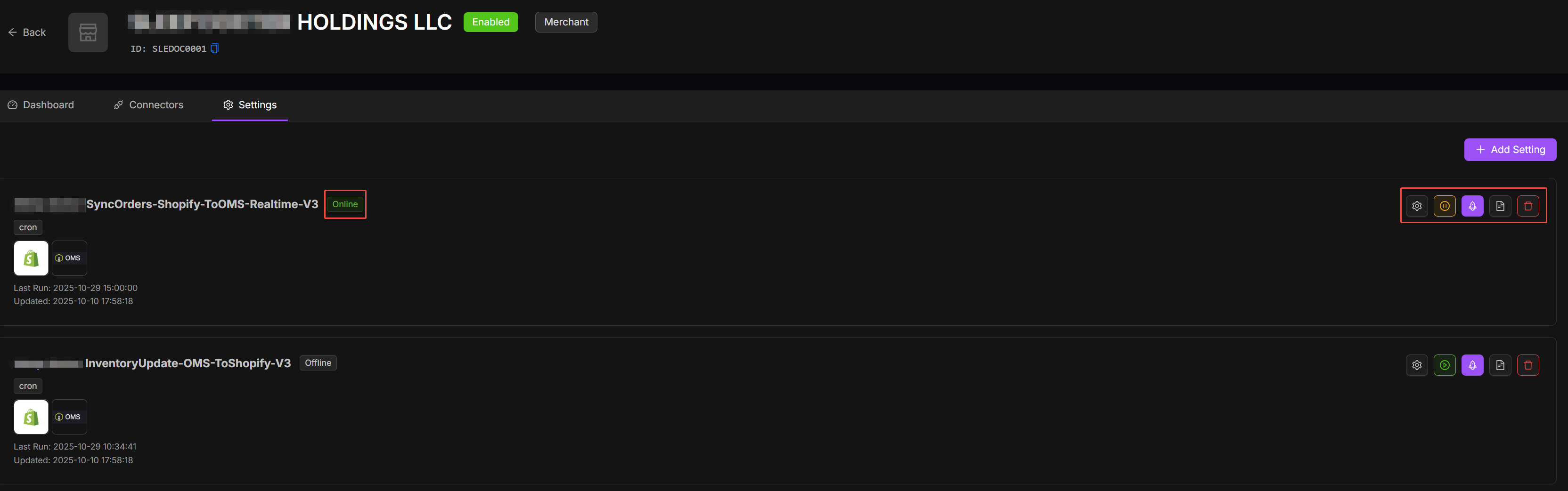
Action | Description | Use Case |
|---|---|---|
Edit | Reopen the configuration window to adjust schedule or parameters. | Adjust Frequency from running every hour to every 15 minutes. |
Pause | Temporarily turn off the flow execution. | Temporarily stop syncing while you fix data issues |
Run | Manually start the flow immediately, regardless of schedule. | Test changes you made to the flow; Force a sync after fixing an issue. |
Logs | View execution logs for this specific flow. This redirects to the Flow page for detailed records. | Debugging |
Delete | Permanently remove the setting. | Replace a flow with a new, standardized template. |
Note: After activating a flow, you can also navigate to Workflow > My Workflows to monitor its status and confirm successful execution.