
Understanding the Building Blocks
Understanding the Building Blocks
The Workflow interface is organized into four key components to help you design and manage automation processes.
Components Panel
Top Navigation Bar
Env Variables
Canvas Area
Components Panel
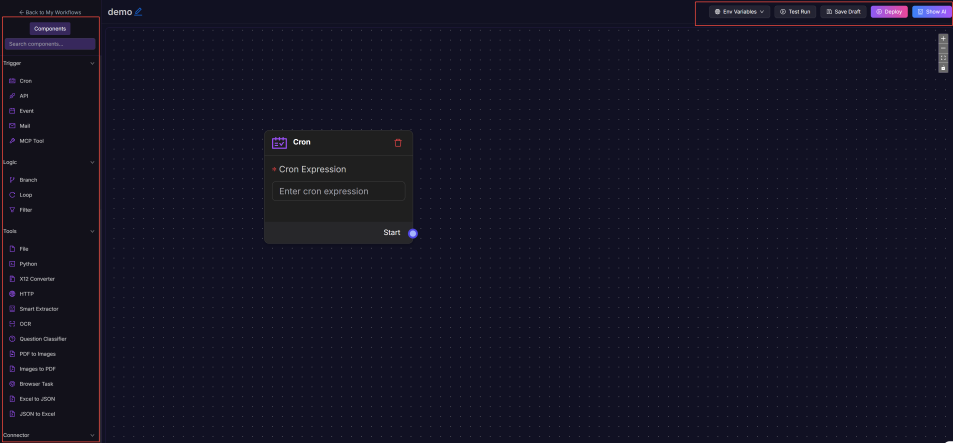
The Nodes Panel serves as the toolbox and lists all available nodes, grouped into four categories: Trigger, Logic, Tools, and Connector. You can drag and drop nodes onto the canvas to assemble a workflow.
Component | Description | Example Nodes |
|---|---|---|
Triggers | Define how and when a workflow starts, act as entry points to listen for incoming events or run scheduled tasks. | Cron (Schedule), API, Event, Mail |
Logic | Provide decision-making and routing controls within a workflow, determine how data moves forward based on conditions or branching rules. | Branch, Loop, Filter |
Tools | Function as utility nodes that transform, enrich, or validate data during workflow execution, commonly used to manipulate the payload before sending it to other systems. | JSON to excel, Python, Smart Extractor |
Connectors | Built-in integration in item DI facilitate interactions with internal ecosystems and external platforms. The authentication, API calls, and data exchange rules for both third-party and internal platforms are pre-configured and ready to use. | Shopify, Amazon, item OMS, item WMS |
Plugins (Optional) | Extend the capabilities of flows with specialized utilities. They can be applied to extract, transform, or filter values without writing custom scripts. | Node Value Extractor, Max Value Extractor |
Top Navigation Bar
Use the Top Navigation Bar to manage your workflow’s life cycle, from setup to deployment. Key actions include:
Env variables: Configure Environment Variables for dynamic values.
Test Run: Simulate execution and validate outputs.
Save as Draft: Keep changes without publishing.
Deploy: Publish Workflow to activate and run in production.
Show AI (Beta): Access the AI Assistant for guided setup or auto-generation of workflows.
Environment Variables
To manage dynamic values across your workflows, configure essential Environment variables.
Variable Type | Scope | Lifespan | Use Case Example |
|---|---|---|---|
Global Variables | Across all flows / global to system | Permanent (until manually changed) | Environment names, system-level configs |
Persistent Variables | Limited to one flow | Saved between multiple executions | Save last processed order ID to resume next time |
Temporary Variables | Limited to one flow instance | Only valid during one execution run | Store intermediate values like parsed data or timestamps |
Import Variables | From external systems/sources | Loaded when the flow is triggered | Input from an HTTP trigger, event payload, or connector |
Canvas Area
The Canvas Area is the central workspace where workflows are visually designed. You can drag nodes from the components panel onto the canvas and connect them to define your workflow's sequence and data flow. Key operations include:
Drag and Drop: Build flows visually by dragging and dropping elements.
Zoom and Pan: Easily navigate through large workflows.
Connect and Delete: Draw lines between nodes to define execution order and data flow; and select a node and click the delete icon to remove it.