Getting Started
Getting Started
Login to YMS Mobile APP
1. Open the YMS on your device.
2. Enter your Account and Password in the designated fields. (Optional) Tap the eye icon to show/hide the password
3. Tap LOGIN to access the YMS App.
General Setting
How to Setup a Default Printer
Connect to Bluetooth
1. Ensure that your mobile device's Bluetooth is turned on.
2. Pair the device with the desired printer via Bluetooth.
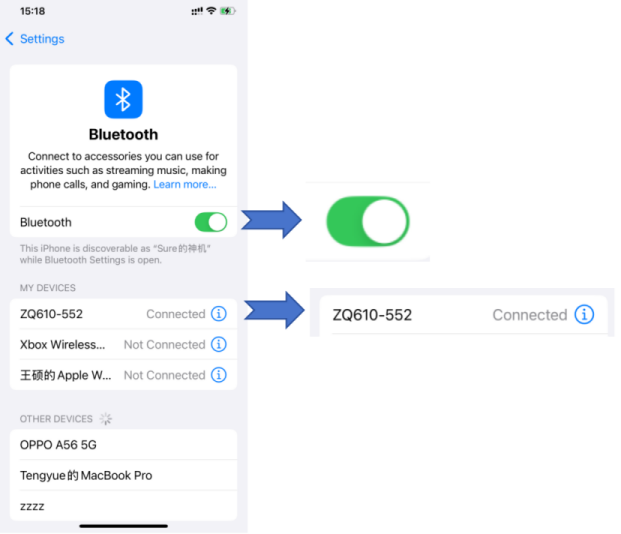
Access Printer Settings
1. Open the YMS App and navigate to the More tab.
2. Select Printer from the menu.
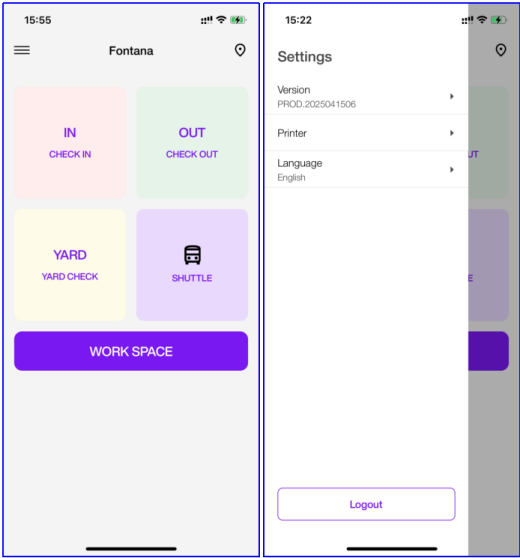
Select Printer
1. In the Printer menu, Select(√) the default printer you just connected via Bluetooth.
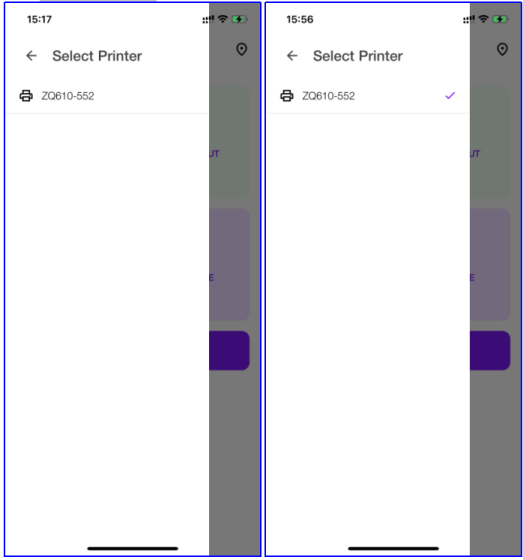
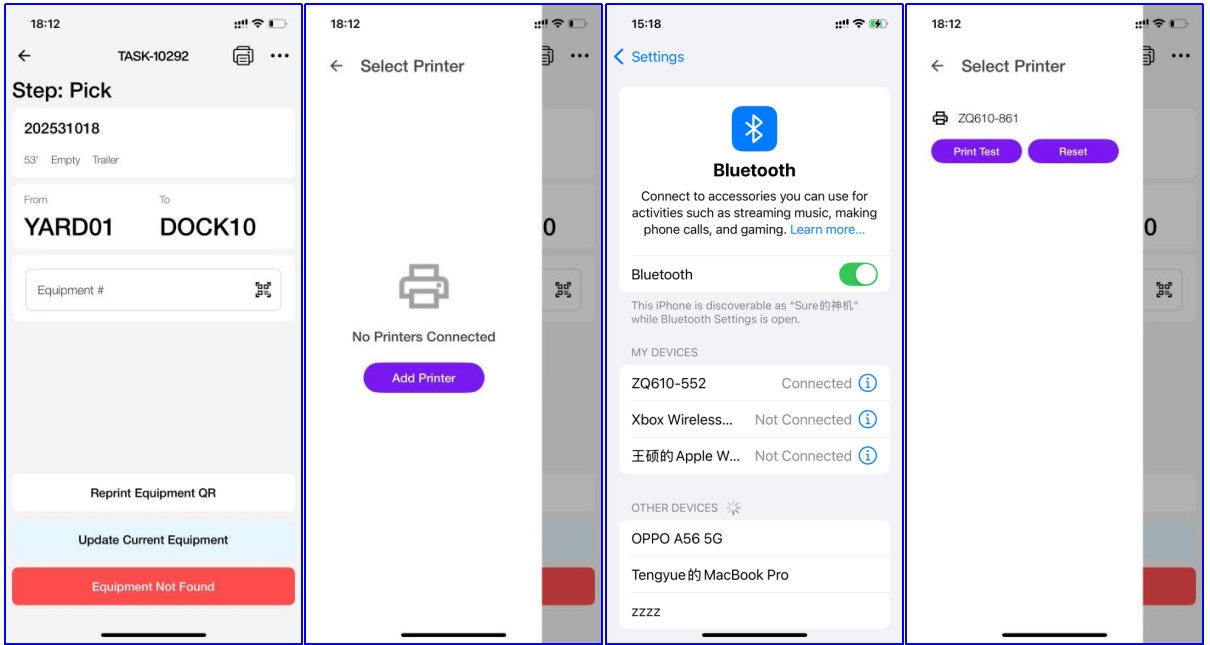
Setup Printer on the Print Page
1. On any page where printing is required, you will see a printer icon in the top right corner.
2. Tap the icon to open the Select Printer popup.
3. Tap Add Printer to go to your phone's Bluetooth settings and connect the desired printer.
4. After returning to the app, printing will be available.
Checking Version Number and Update
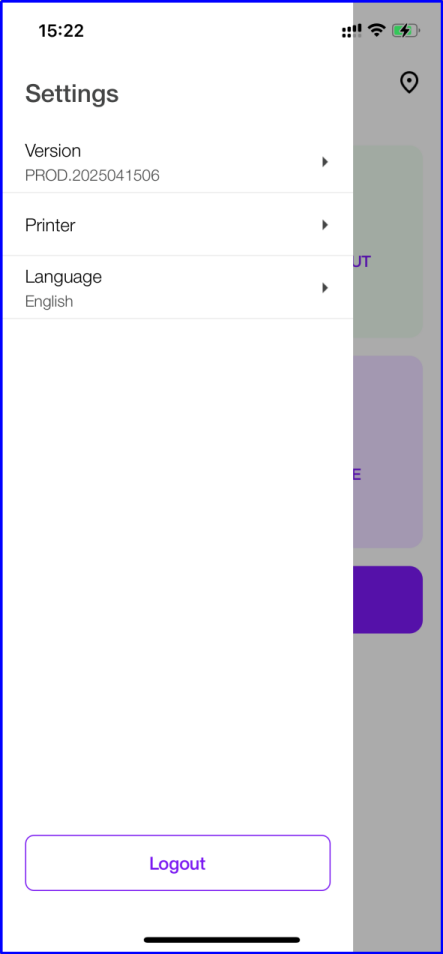
Version Number
Display othe app version (PROD.2025041506).
Update
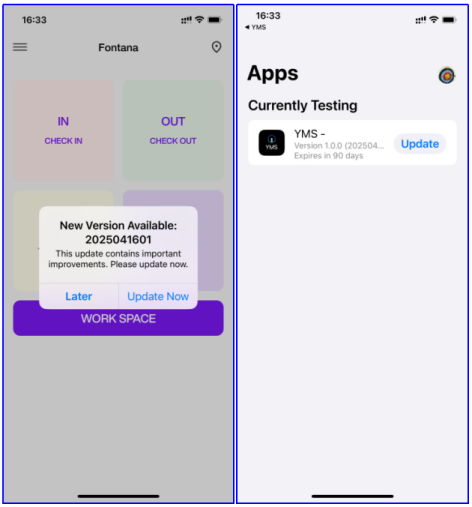
If a new version of the app is available, a pop-up notification will appear. You can choose to update immediately or later. If you select Update Now, you will be redirected to the app update settings page.
Changing Facility
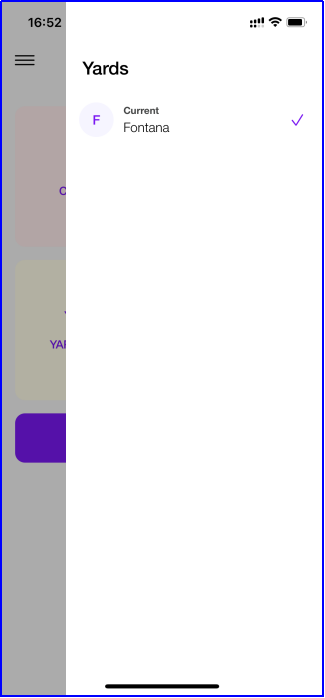
Tap the Map icon in the top-right corner of the home screen to access the Facility list. You can view and switch between available yards. The currently selected yard is marked as Checked.