
Build New Commitment
Build New Commitment
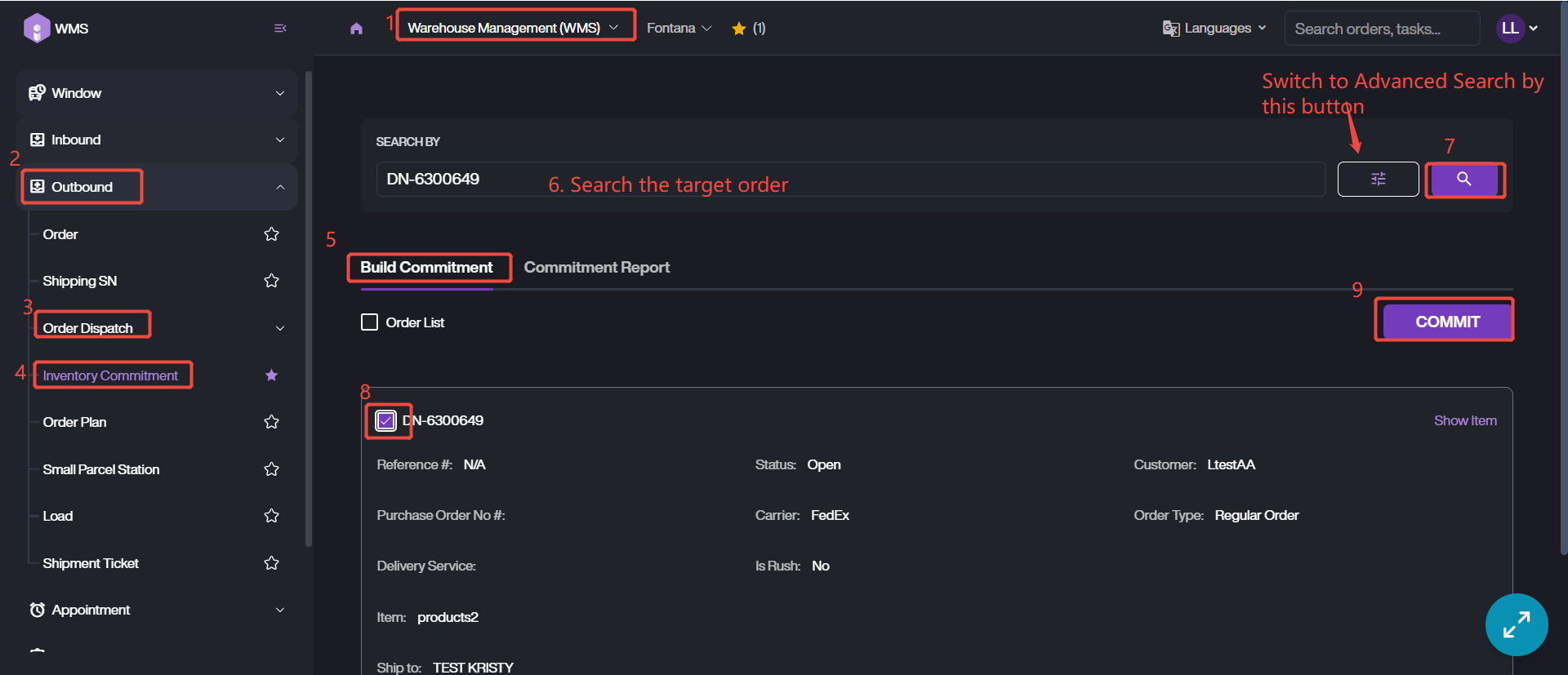
1. Navigate to Warehouse Management (WMS) Module > Outbound > Order Dispatch > Inventory Commitment.
2. Keep on Build Commitment tab, there are lists of the order waiting for inventory commit.
3. Search and retrieve the target order. There are two search methods, General Search by number related to order, Advanced Search by various search fields.
4. Select the order, then click COMMIT to proceed.
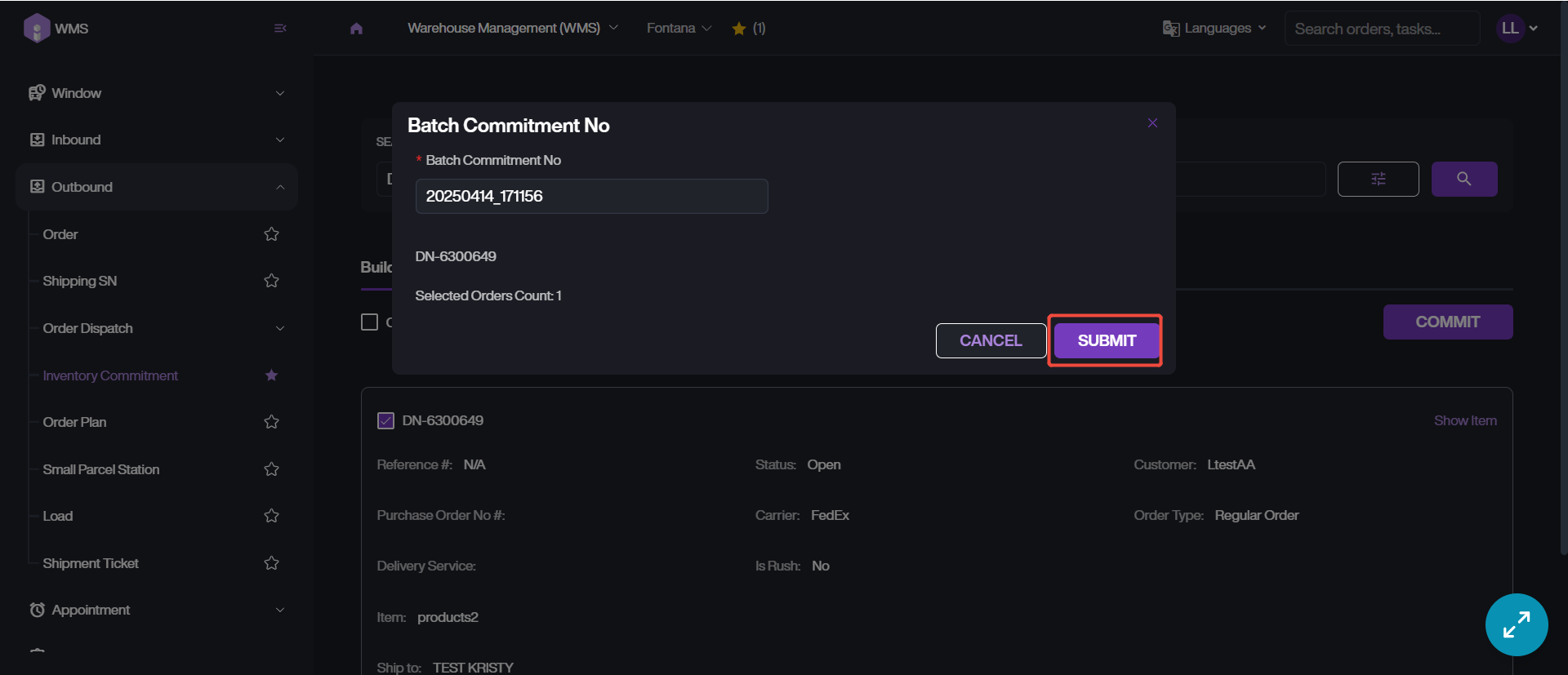
5. SUBMIT the commitment.
6. Upon submit, the system will be automatically redirect to Committment Report. Please confirm whether the inventory status is Committed.
Here are some common reasons to block commitment.
Reason | Description |
|---|---|
Lack of available inventory | Requires receiving or restocking inventory to available locations. |
Inventory is in a locked location | Requires moving inventory to an available location. |
Inventory is already committed to another order | Requires cancellation of previous order, or receiving/restocking more inventory to an available location. |