
How to View User Activities
How to View User Activities
Item Pass supports to record user’s login/logout activities and corresponding device information and time&date. This article explains the related parameters and introduces how to view the user activities on Pass system.
Navigate to Activity you will see the all activities of all user accounts. The activities records contain users’ account, modules, platform, device, activity type and date & time.
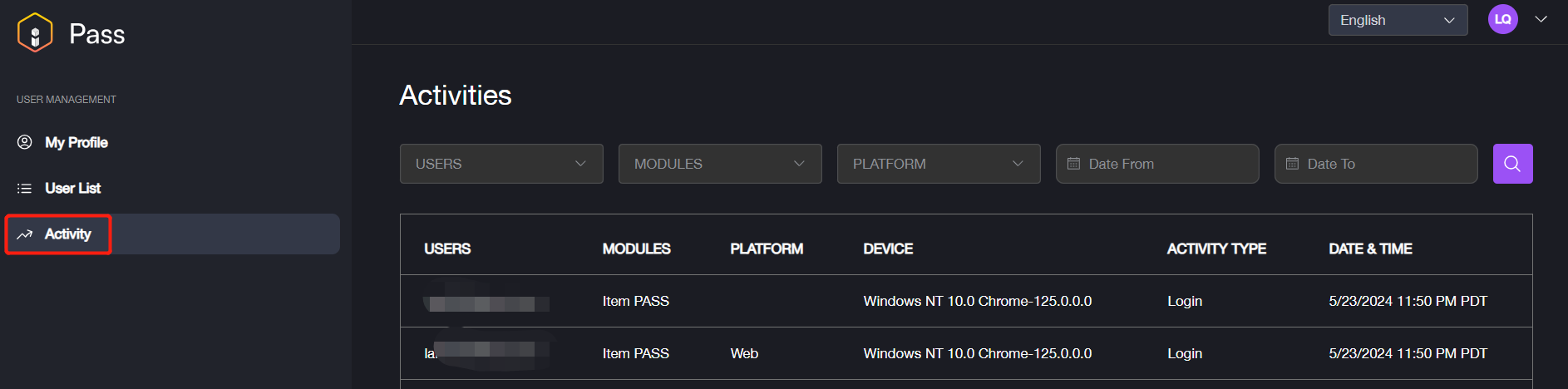
Example:

In this case, these information can be known: User lala0505@teml.net login Item Pass via Web page on 11:52 PM PDT,5/21/2024. And he uses the computer with Windows NT 10.0 Version Operation System, and the web browser is Google Chrome with 124.0.0.0 firmware version.
Parameter | Description |
|---|---|
Users | The user account of the activity to be displayed on the list. |
Modules | The application module of the activity to be displayed on the list. Value: all Item applications. |
Platform | The application’s platform of activity to be displayed on the list. Value: Android, IOS, Web. |
Device | The device information of this activity to be displayed on the list. Format: System name with firmware version + Browser with firmware version Value: - If the device is computer, it will show the firmware version of the operation system and web browser. - If the device is mobile phone, it will show the brand & model of the device and the version of the operation system. |
Activity Type | The type of the activity to be displayed on the list. Value: Login, logout and switch. |
Date & Time | The date and time of the activity to be displayed on the list. |
Note:
If the user logins to the account on the device other than the current device, it will trigger the system to automatically send an email to remind the user.
Triggering conditions: when the system detects the device value changed, it will send the email.
Here lists some common usage scenarios as shown:
No. | Scenarios |
|---|---|
1. | Update the firmware version of web browser. |
2. | Open another web browser to login the account on the same computer. |
3. | Use another computer to login the account. |
Email format/content: here explains the email format/content as shown:
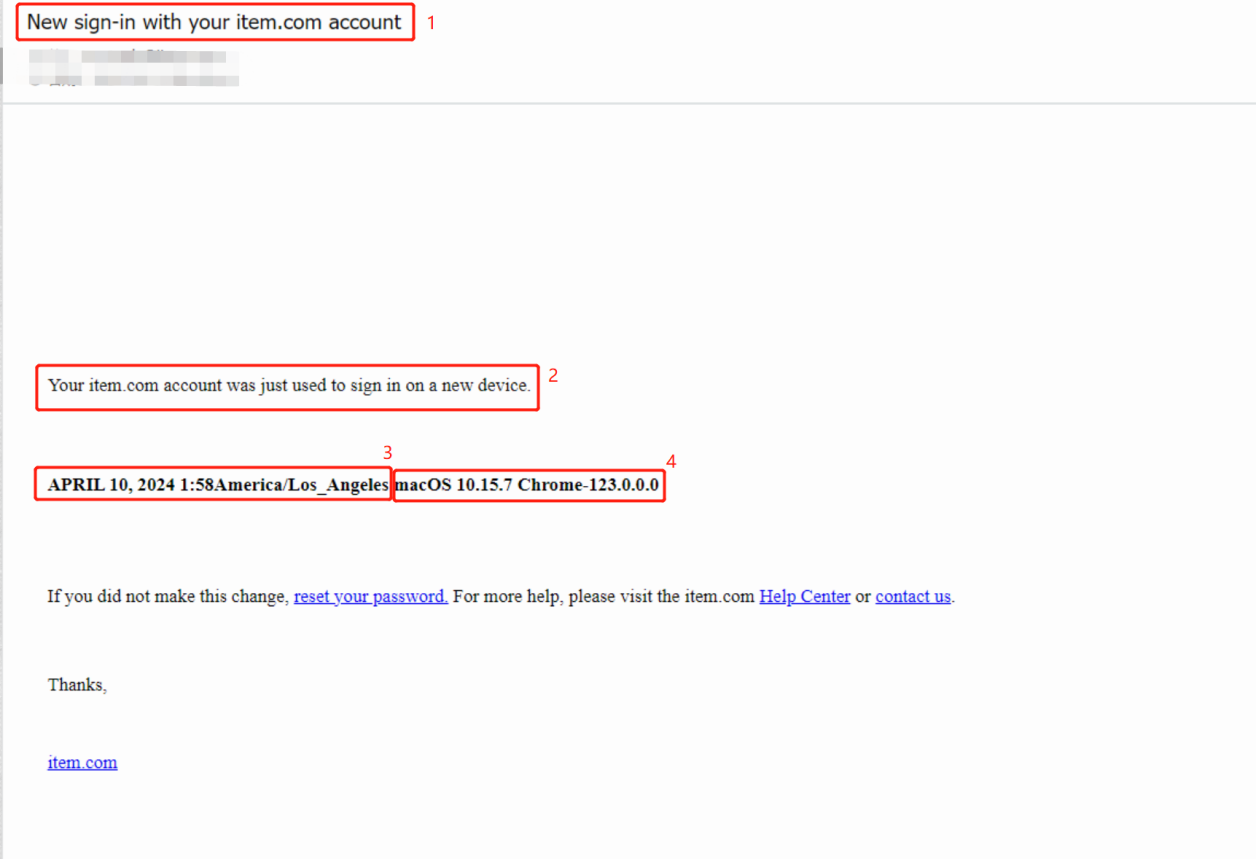
No. | Description |
|---|---|
1. | The title of the email. |
2. | Remind the user there is a new sign-in operation on a new device. |
3. | The Time&Date and location of the new sign-in Date. Format: MM/DD, YY Time Format: HH:MM |
4. | Device value of the new sign-in. |
If the new sign-in isn’t caused by the user, please click the link in the email to reset the password for security considerations.
Category
There are some categories for searching the activities quickly.
Category | Description |
|---|---|
Users | Select the user account for searching. |
Modules | Select the Item application for searching. Value: all Item applications, such as Item Pass, Item POS, Item WMS. |
Platform | Select the platform of the application for searching. Value: Android, IOS, Web |
Date From | Setup a starting date for searching. For example, set the date as May 17th, it will display the corresponding records which are operated from May 17th. |
Date To | Setup an ending date for searching. For example, set the date as May 24th, it will display all records which are operated before May 24th. |