
Data Exchange Log
Data Exchange Log
The Data Exchange Log function allows you to track data flows from your sales channels, which is crucial for effective troubleshooting. The logs available includes the following:
Category | Description |
|---|---|
Setting Log | Record operations configured in the Settings section, including settings related to Orders, Inventory, and Shipments across sales channels. |
Order Log | Track data flows of orders among item OMS, item WMS, UNIS Wise, and Sales Channels. |
Shipment Log | Record operations related to shipments and allows you to track shipment updates. |
Inventory Log | Record inventory-related operations such as adjustments, data flows among item WMS, item PIM, item OMS and Sales Channels. |
Purchase Order Log | Record updates associated with purchase orders, including Purchase Order No., Receipt No., DN No. in UNIS, warehouse, sync status. |
Troubleshooting with Data Exchange Log
To view log details, from the left panel, navigate to the desired logs page under the Data Exchange Log section. You can see the log list displays the following details info for each log.
Settings Log
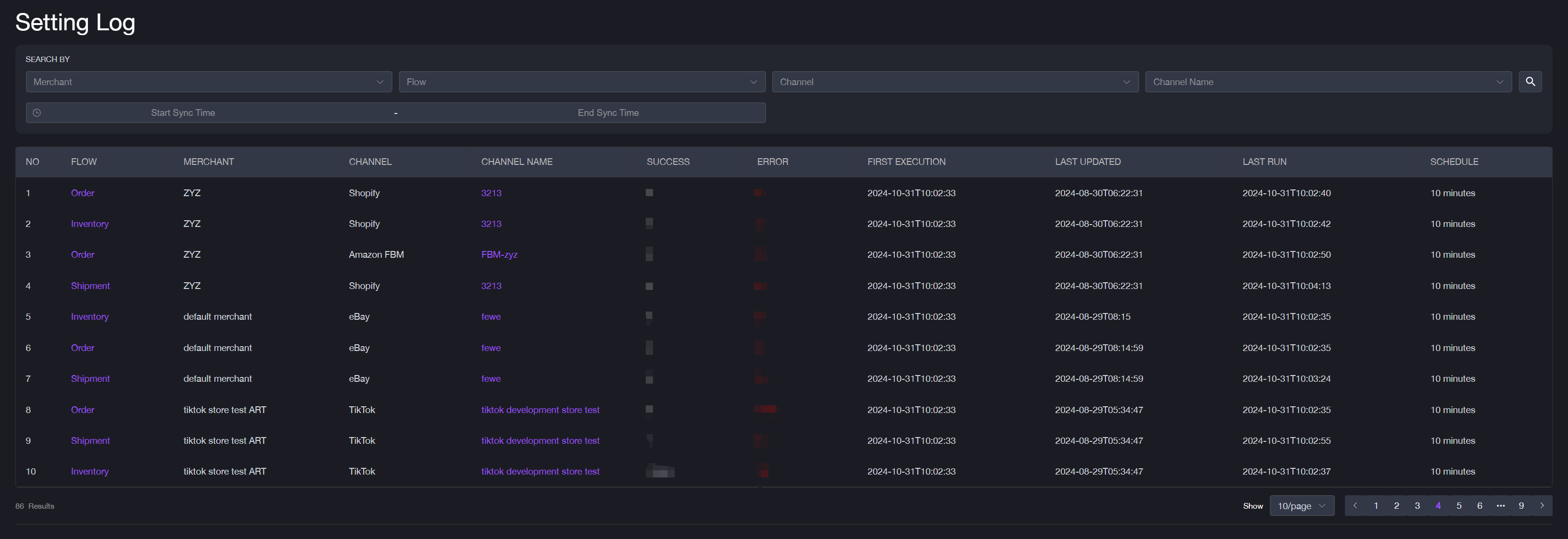
Header | Description |
|---|---|
Flow | Indicate the type of data flow for the current task (e.g., Order, Shipment, Inventory). |
Merchant | Indicate the data flow under which merchant. |
Channel | Indicate the settings for which sales channel are configured (e.g., Shopify, Amazon). |
Channel Name | The name of the sales channel. |
Success | The successful records for the current data flow. |
Error | The failed records for the current data flow. |
First Execution | Record the first time the system executed this task. |
Last Updated | Record the most recent time the task was edited. |
Last Run | Record the last time the system executed the task. |
Schedule | Indicate the scheduled interval for regular updates (e.g., every 10 minutes, 30 minutes). |
Orders Log
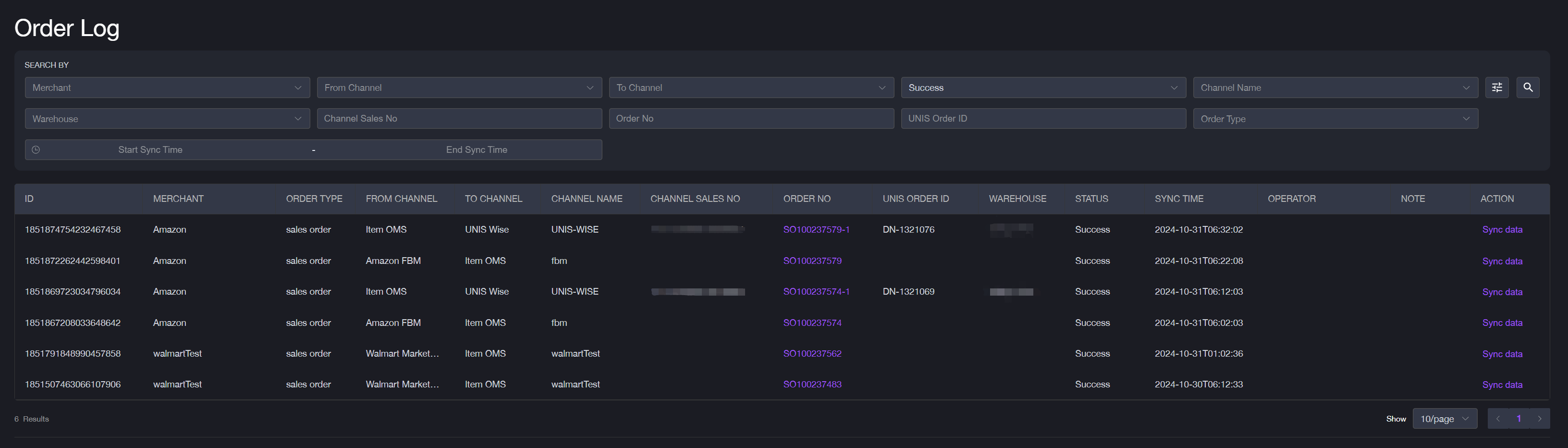
Header | Description |
|---|---|
Order Type | The order type can be either a sales order or a canceled order. |
From Channel | Indicate the data from which channel was transferred. |
To Channel | Indicate the data to which channel was transferred. |
Channel Sales No. | Refer to the sales number shown on the third-party channel. |
Order No. | The sales order No. generated from item OMS. \ If the status of the order log displays Success, you can view the details of that specific order by clicking its Order No. This will redirect you to the Order List_ page. |
Warehouse | The name of the warehouse. |
Status | Indicate if the data sync was successful or failed. |
Sync Time | The start and end dates of the sync process. |
Note | Detail the error or issue that caused a sync failure. |
Action | Retrieve the request and response values for the API call related to this data flow by clicking Sync Data. |
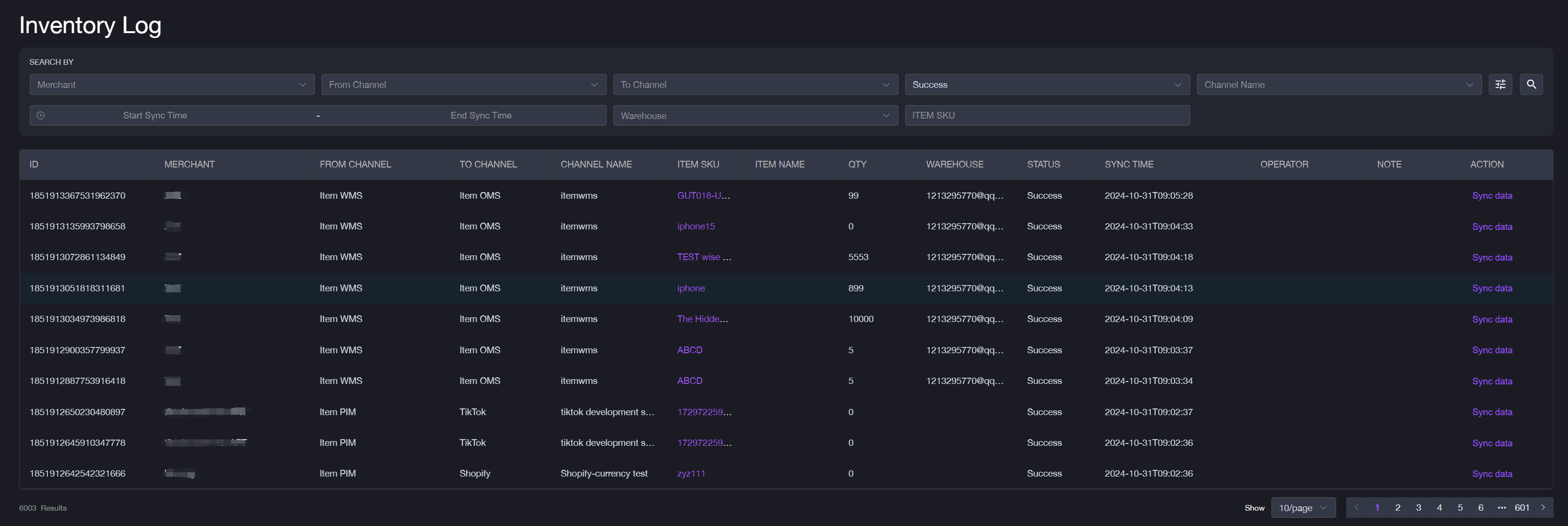
In the shipment, inventory, and purchase order logs, the headers are mostly the same as those in the Order Log, here showing only the unique headers.
Shipment Log
Header | Description |
|---|---|
Tracking No. | Show the order's tracking number. |
Shipment No. | The shipment number created in item Ship. |
Carrier | Indicate the carrier service for the shipment. |
Inventory Log
Header | Description |
|---|---|
Item SKU | The item SKU displayed in PIM for inventory sync. |
QTY | The quantity of this item for inventory sync. |
Purchase Order Log
Header | Description |
|---|---|
Channel Purchase Order No. | The purchase order number from the third-party channel. |
Purchase Order No. | The purchase order number generated by the item OMS. |
UNIS Order No. | The Delivery Notice number generated from UNIS Wise. |
Filter Logs
To search specific data flows, you can use filters. For example, the Setting Log can be searched with the following options. The filters for each log may vary.
Merchant: Select the specific merchant whose logs you want to view.
Flow: Choose the type of data flow (Order, Shipment, Inventory).
Sales Channel: Filter logs by sales channel (Shopify, Amazon, etc.).
Channel Name: Specify the name of the sales channel.
Date: Specify the start date and end date.